In addition to being used in conjunction with Topdon tablets (such as Topdon One, One Lite, and One Plus), ONE VCI can also function as a standalone J2534 interface, operating via the RLink platform to communicate with OEM diagnostic software.
This article will demonstrate how to use ONE VCI as a J2534 Pass-thru device and outline which brands are supported.
Part 1. How to Use ONE VCI as a J2534 Pass-thru Device:
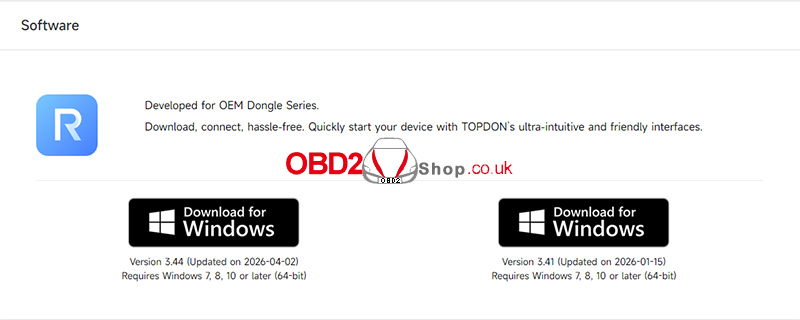
1. Download and install the RLink platform from the official TOPDON website.
2. Launch the RLink platform and log in using the same TOPDON account used on your tablet.
3. Connect ONE VCI to a Windows-based computer (on which the RLink platform is installed) via a USB cable, and connect it to the vehicle’s DLC port using the OBD-II diagnostic cable.
4. Click “Bind and Activate” to link your ONE VCI to the RLink platform.
5. Click “Driver” > “Driver Download” to download and install the corresponding OEM driver.
6. Additional steps may vary depending on the vehicle’s make, model, and year. For detailed instructions, navigate to “User Guidance” > “Quick Guidance” > “ONE VCI” to view the guides specific to the supported vehicle brands.
Part 2. OE Brands Supported by ONE VCI J2534 Pass-thru
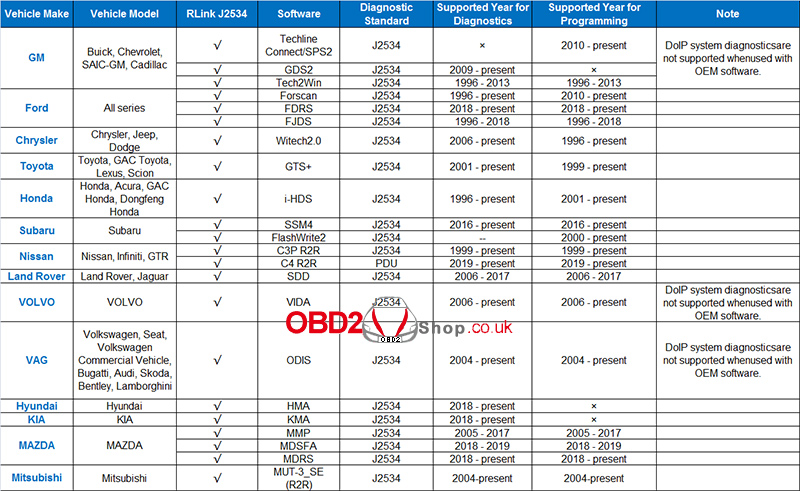
ONE VCI J2534 Pass-thru supports the following OE brands (OE software must be purchased separately):
GM, Chrysler, Ford, Honda, Hyundai, Kia, Land Rover, Mazda, Mitsubishi, Nissan, Subaru, Toyota, Volvo, VW.
For further details, please refer to the table below: