
This post shows how to activate and download the software for the TOPDON RLink J2534 diagnostic tool.
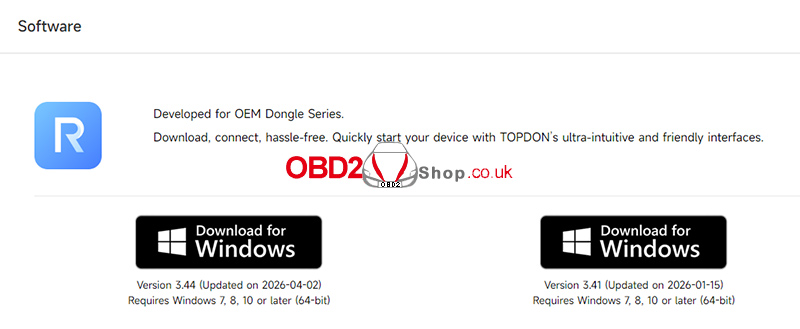
1. Download and install the RLink Platform software on your PC.
Go to www.topdon.com. Click on Diagnostic Tools > RLink J2534, then click Download.
Note: It is recommended to disable your antivirus software during installation. Since the RLink Platform serves as the driver management platform for OEM software, it may be mistakenly removed by antivirus software.
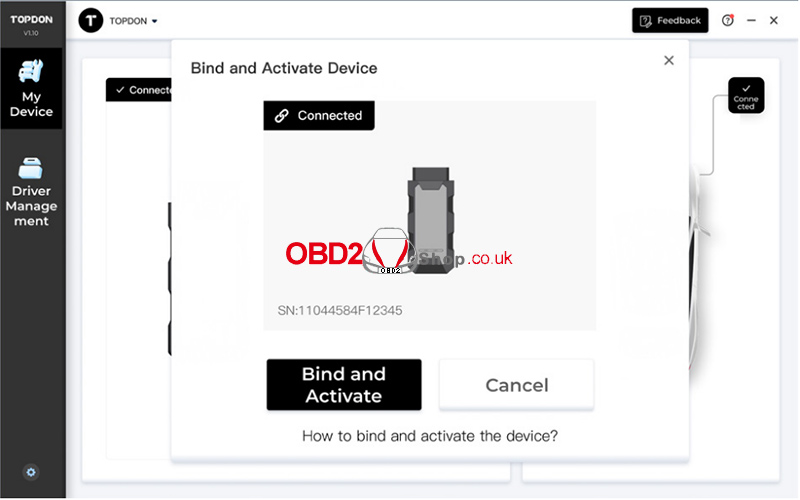
2. Launch the RLink Platform software. Register or log in to your TOPDON account. Connect the RLink J2534 to a PC using the included USB 2.0 cable. Then, click “Bind and Activate” to activate the RLink J2534.
Note: Update the firmware to the latest version after binding the device.
3. Click on Driver Management > Driver Download to download the specific driver for your OEM diagnostic software.
Note: The list of drivers depends on the actual product configuration.
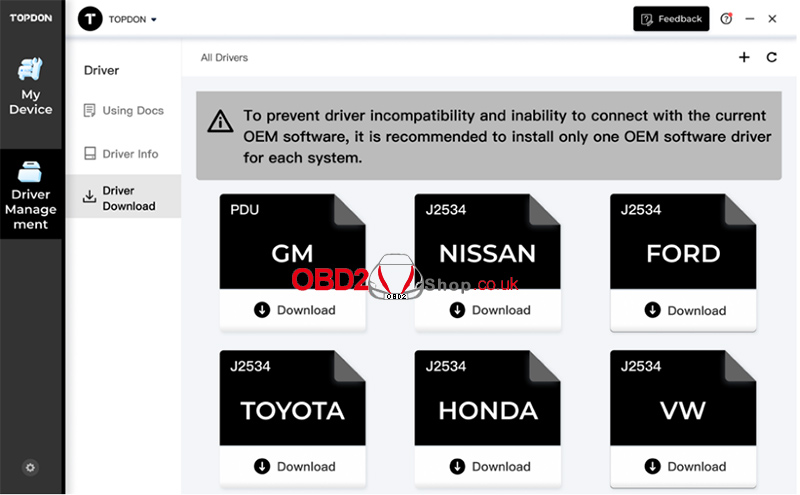
Note: To ensure program stability, download the driver corresponding to the OEM software currently installed on your PC. Do not download drivers that are unrelated to your OEM software.
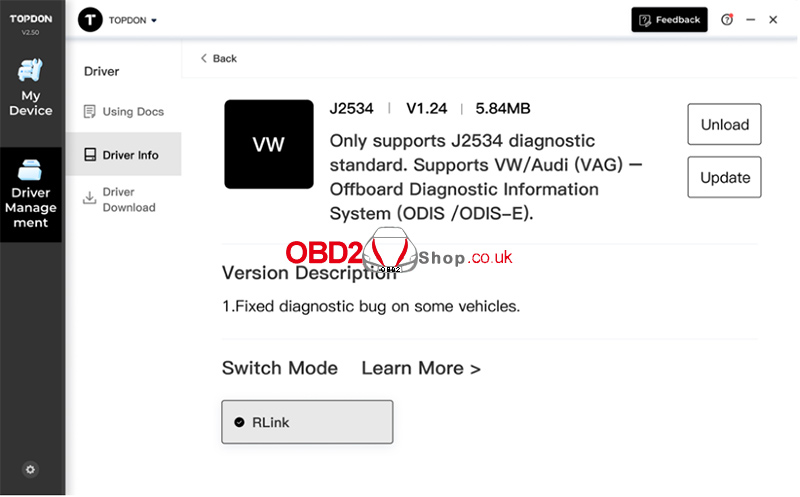
4. Click on Driver Management > Driver Info after downloading the driver.
Then, click to open the newly downloaded driver and select the RLink mode.
Note: The illustrations and screenshots used in this Quick User Guide may differ slightly from the actual product due to ongoing product improvements.
For further information, please contact www.obd2shop.co.uk.
