
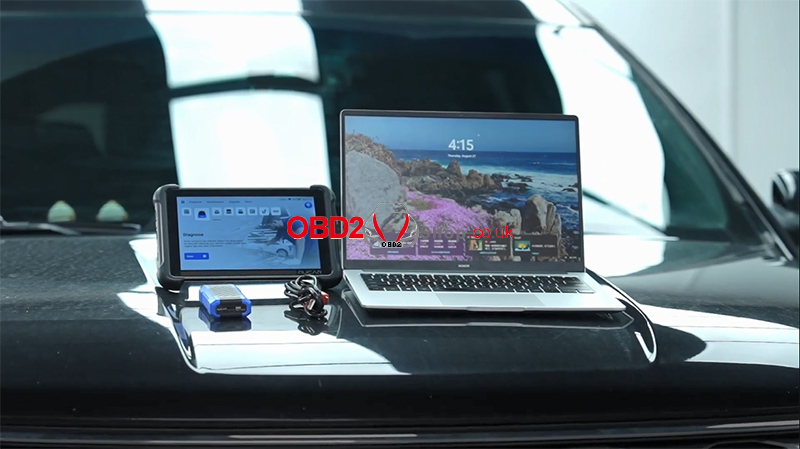
The MUCAR 892BT Pro supports the J2534 Pass-Thru function, allowing it to work with OE diagnostic software and other compatible diagnostic applications via a laptop. Follow this guide to install the J2534 driver and connect the device.
1. Prepare the Required Tools
Before getting started, prepare the following:
MUCAR 892BT Pro
MUCAR GVCI connector
USB-to-USB Type-C data cable (included in the package)
A laptop with OE diagnostic software or other compatible diagnostic software installed
Make sure the J2534 driver is also installed on your laptop.
2. Download and Install the J2534 Driver
① Visit the MUCAR official website.
② Go to Support > Software Download and download the latest J2534 driver.
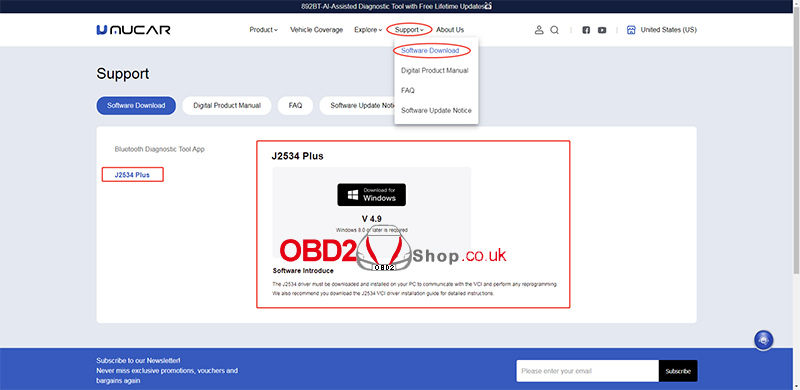
③ Run the downloaded setup file.
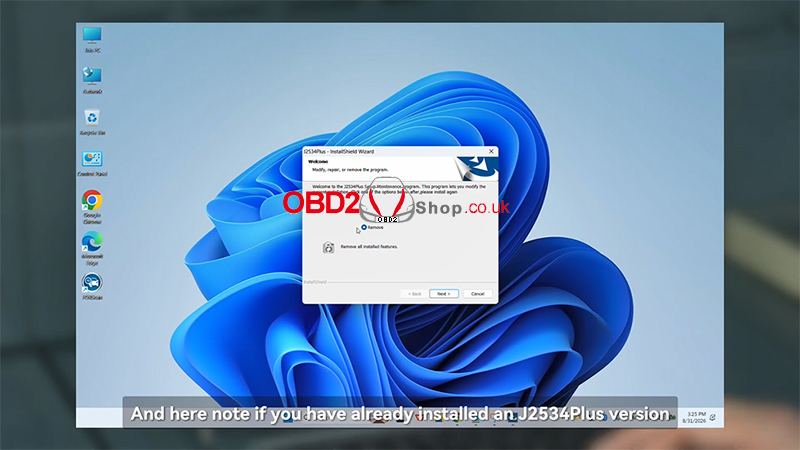
④ If an older J2534Plus version is already installed, the installer will prompt you to uninstall it. Click Next to remove the old version.
⑤ Run the setup file again, click Next, then Install.
⑥ Wait for the installation to complete and click Finish.
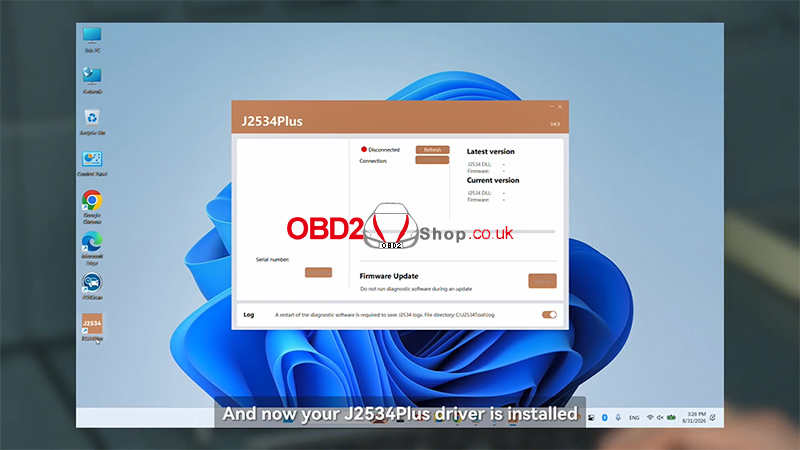
The J2534Plus driver is now installed.
3. Connect and Update the GVCI
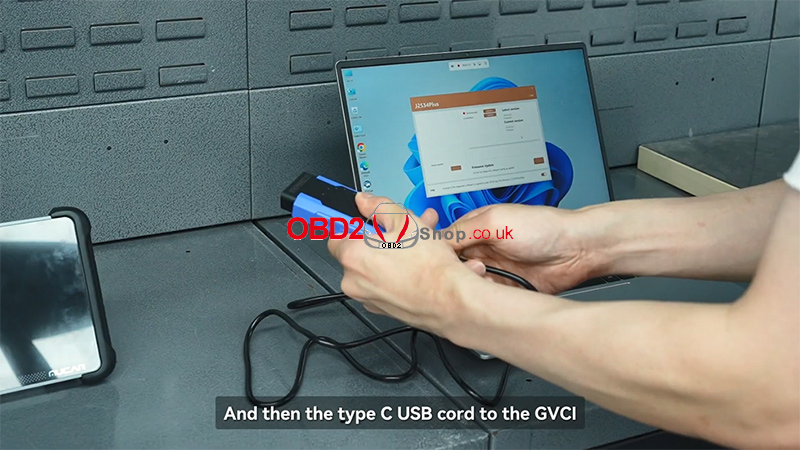
① Connect the USB end of the data cable to your laptop and the Type-C end to the GVCI connector.
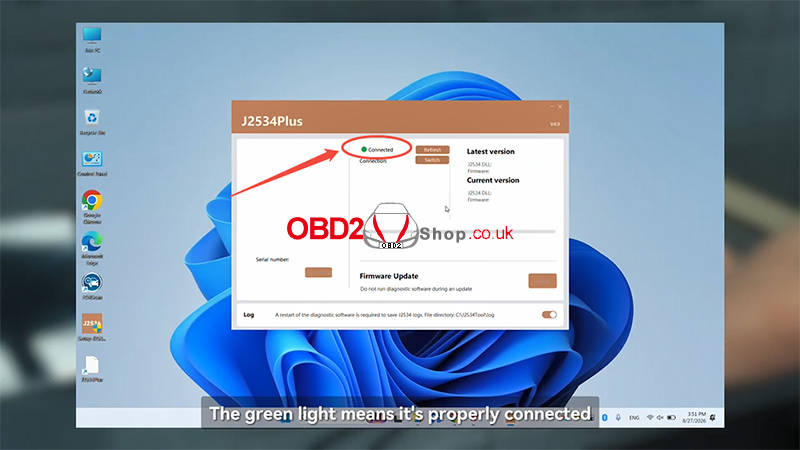
② Check that the indicator light turns green, confirming a proper connection.
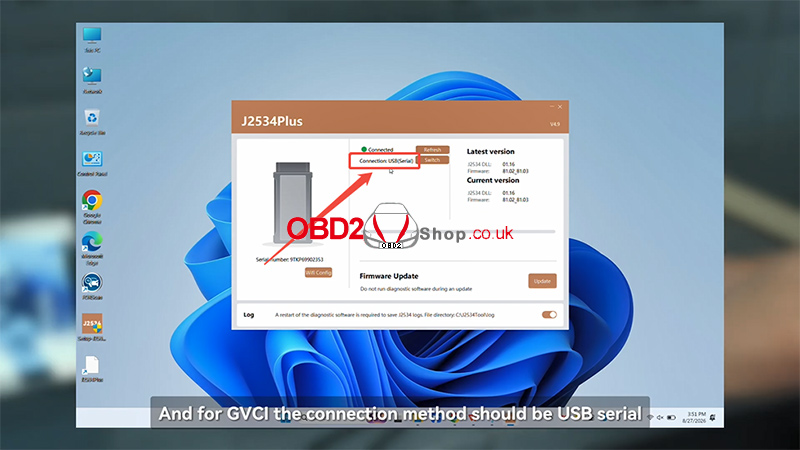
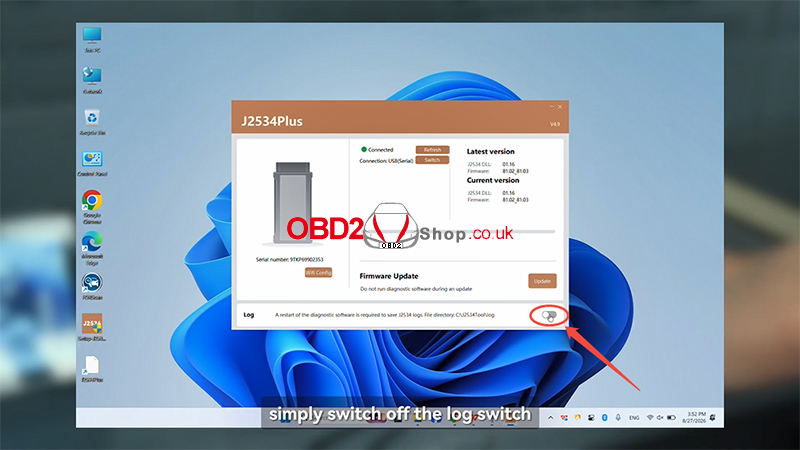
③ Open the J2534Plus application and select USB Serial as the connection method.
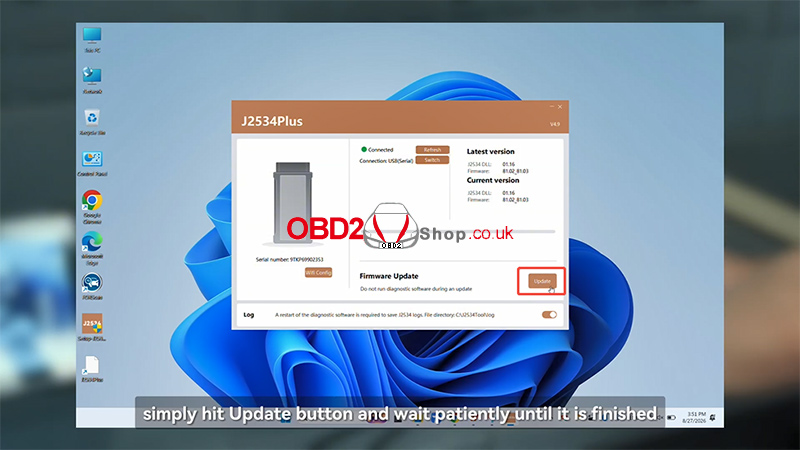
④ Check the driver DLL version and VCI firmware. If updates are available, click Update and wait for the process to finish.
Note: The logging function can be enabled to save diagnostic data in the J2534 tool log folder. If you encounter any issues, send the log files to customer support for analysis. You can also turn off logging if you don’t need to save the files.
4. Connect to the Vehicle and Configure Diagnostic Software
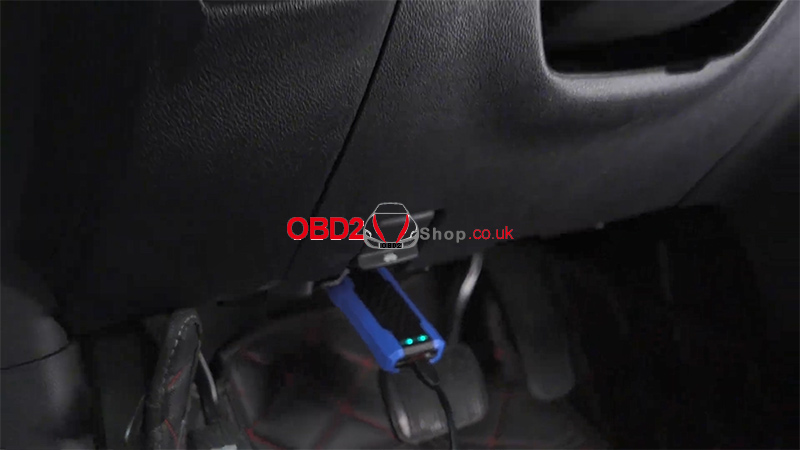
① Once the GVCI is connected to the laptop, plug it into the vehicle’s OBD port.
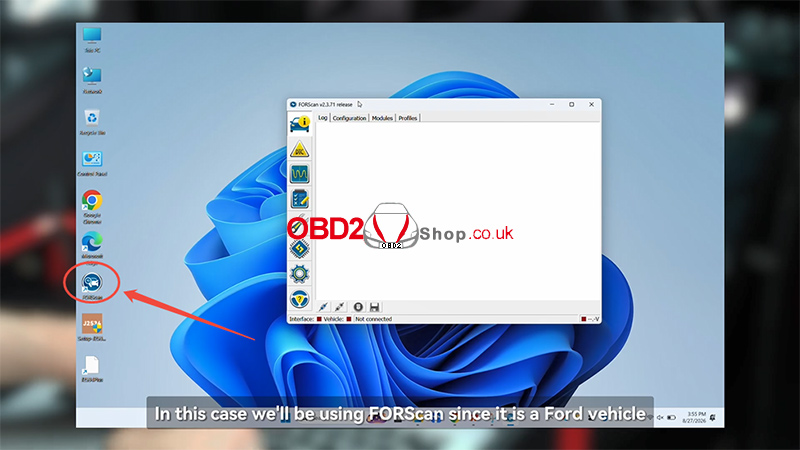
② Open your diagnostic software. The J2534Plus application does not need to remain running during diagnosis.
③ In this example, we’ll use FORScan for Ford vehicle diagnostics.
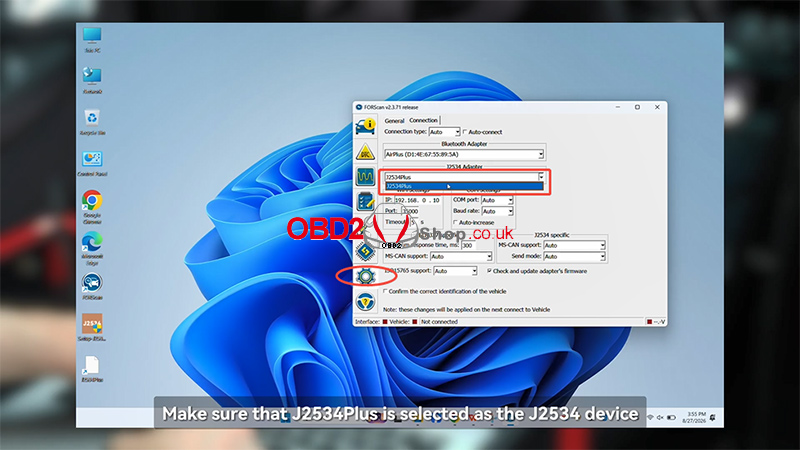
④ Open Settings > Connection and select J2534 Plus as the J2534 adapter.
5. Start Vehicle Diagnostics
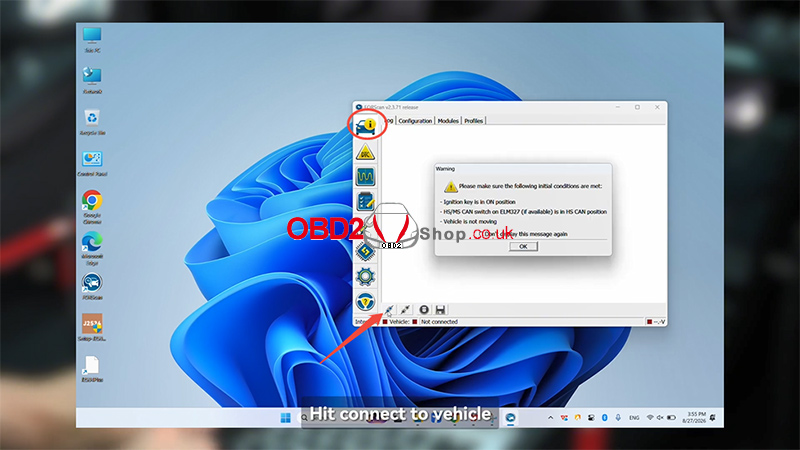
① Go back to Vehicle Interface and click Connect to Vehicle.
② Turn the vehicle ignition on and click OK.
③ Select an existing vehicle profile if available. The software will scan the vehicle’s modules and retrieve diagnostic trouble codes (DTCs).
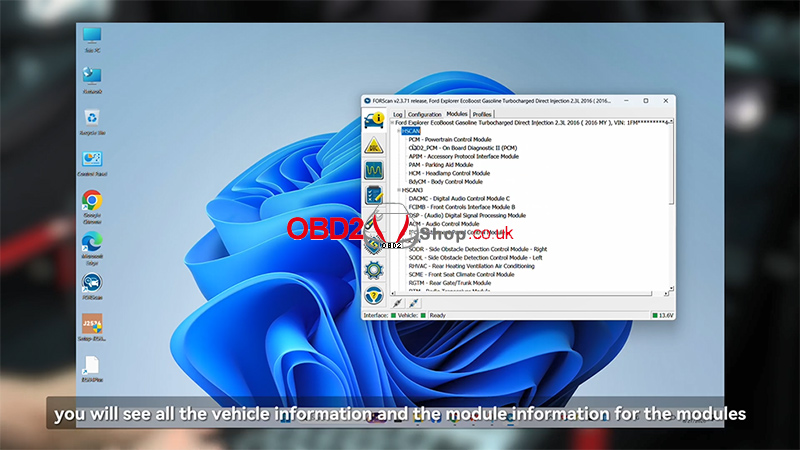
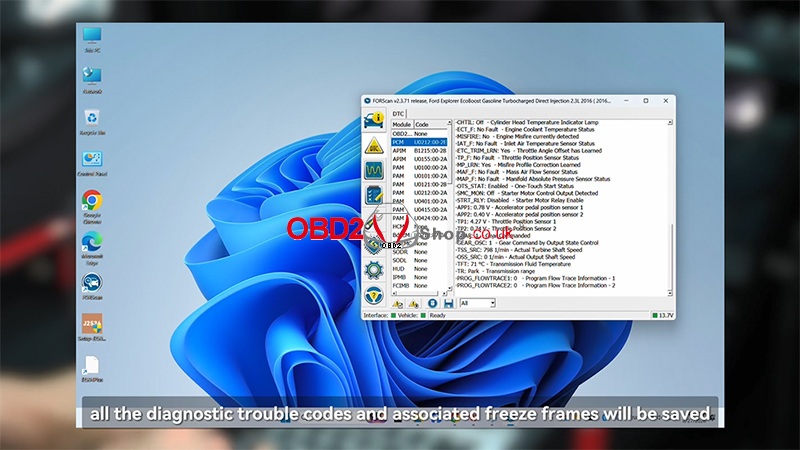
Once the scan is complete, you can view vehicle information, module details, diagnostic trouble codes, and associated freeze-frame data.
6. View Live Data and Finish
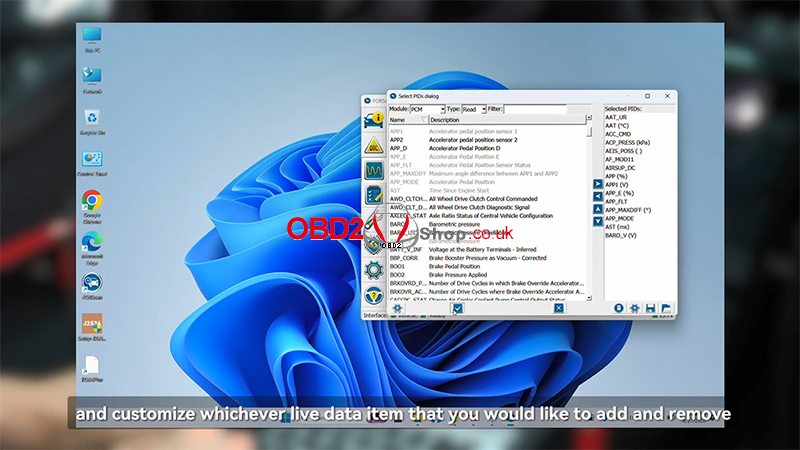
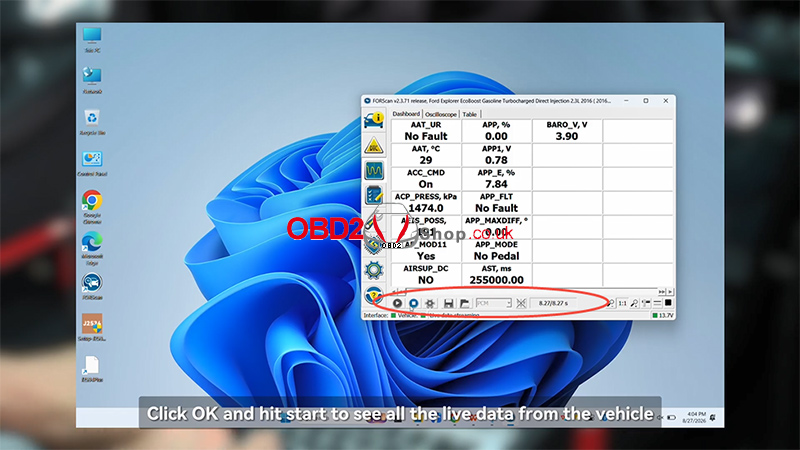
① Go to Read PID Data and select the live data parameters you want to monitor.
② Click OK, then Start to view real-time vehicle data.
③ You can also perform available tests through the diagnostic software.
④ When finished, return to Vehicle Interface and click Disconnect.
The MUCAR 892BT Pro J2534 Pass-Thru setup is now complete.
Video guides:
For more automotive diagnostic tools and information, visit:
www.obd2shop.co.uk
