To maintain peak performance and access the latest vehicle support, you must regularly update your Xhorse Dolphin XP-005. You can perform updates directly via the mobile app for database synchronization or use a PC-based Upgrade Kit for comprehensive firmware and database maintenance. Keeping the software current ensures precision cutting and hardware stability.
Method 1: Online Database Update (Mobile App)
This is the fastest way to sync the latest key codes and vehicle data using your smartphone.
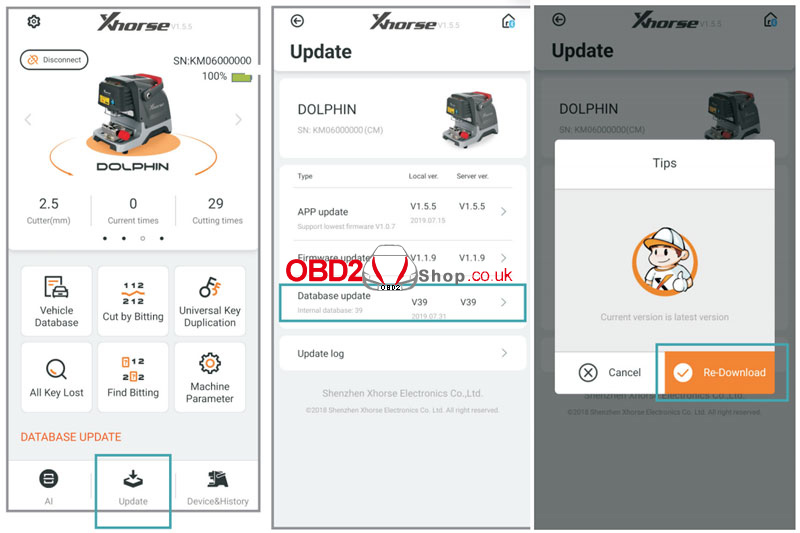
(1) Access Update Menu: Enter the Dolphin XP-005 main interface and click ‘Update’.
(2) Select Database: Click on ‘Database update’.
(3) Download & Install: If a new version is detected, click ‘Update’ to download.
(4) Confirm Success: Click on ‘OK’ after the database download is successful.
Note: If connected via mobile data, a prompt will warn about potential fees; downloading via WiFi is recommended.
Method 2: Firmware & Database Update (Upgrade Kit)
Use this method for major system improvements and firmware stability.
1. Obtain the Upgrade Kit
You can acquire the necessary update package through three channels:
Distributor: Contact your distributor and ask for the ‘Upgrade Kit’.
Email Support: Send an email titled ‘update tool’ to support@xhorse.com.
Xhorse App: Consult with online customer service on the Xhorse App.
2. Execution Steps
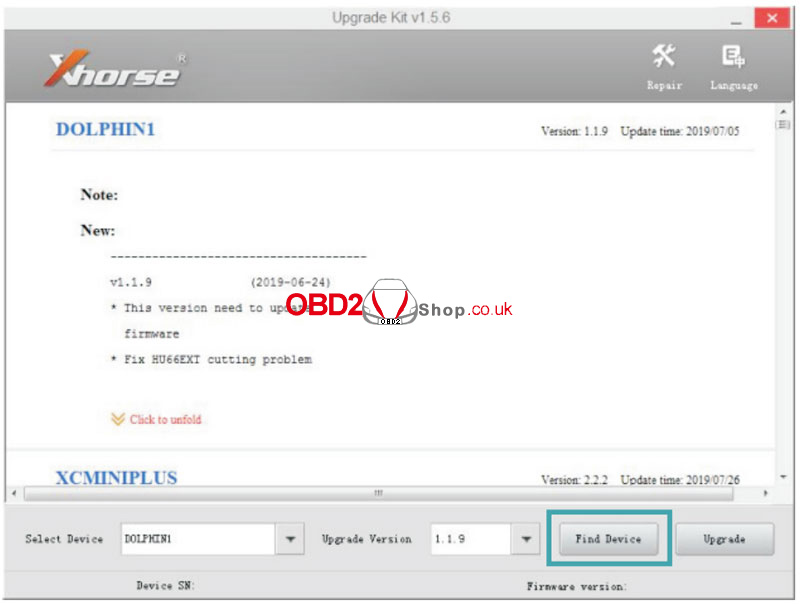
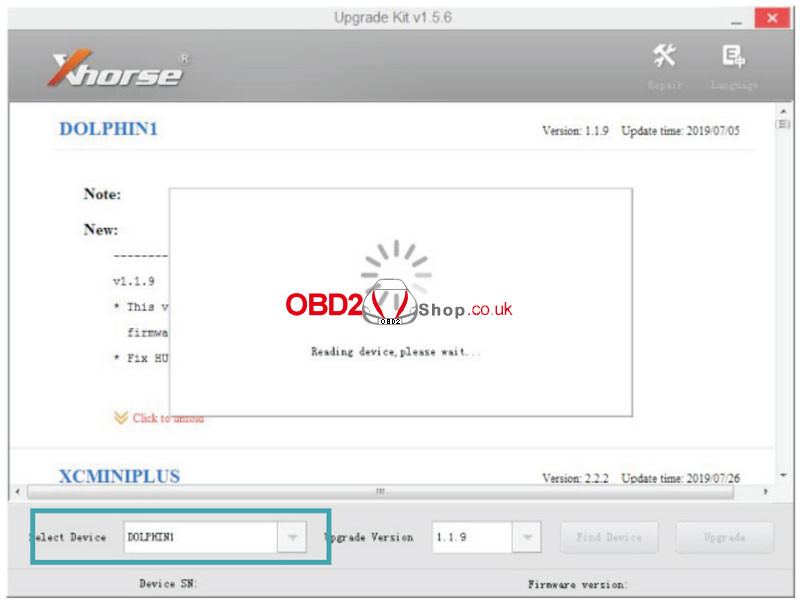
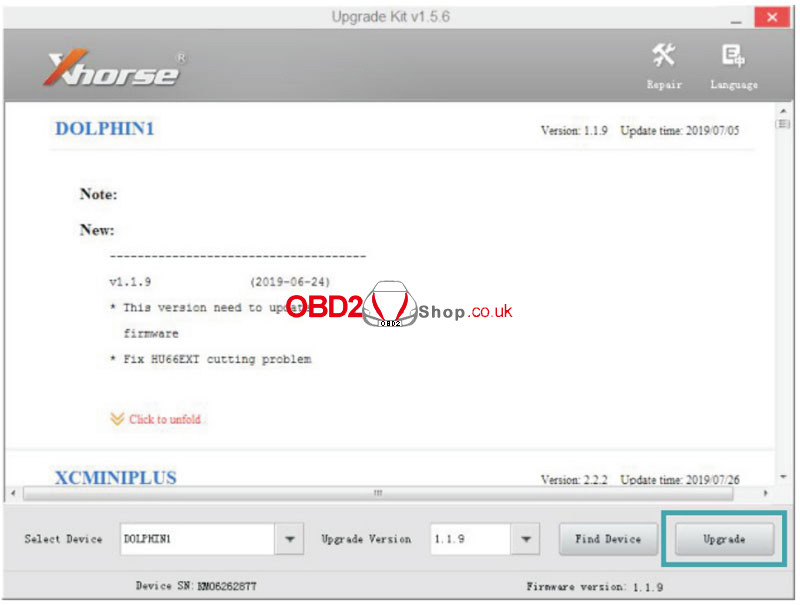
(1) Connect Device: Connect the Dolphin with a computer through a USB cable. Run ‘Upgrade Kit>>Find Device’.
(2) Recognition: The connected device will be recognized and shown in the left corner.
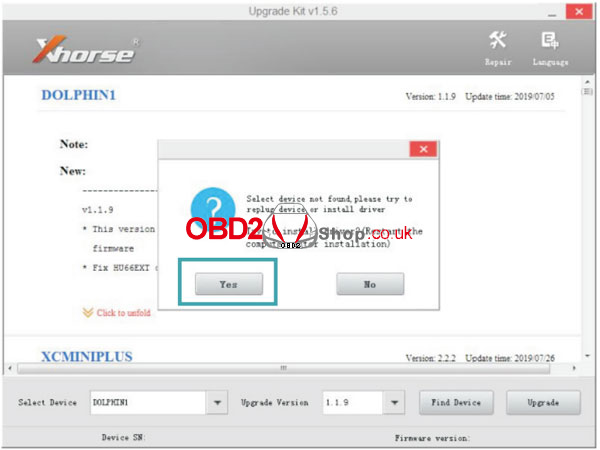
(3) Driver Installation: If the device is not found, follow the on-screen tips and click ‘Yes’ to install the driver.
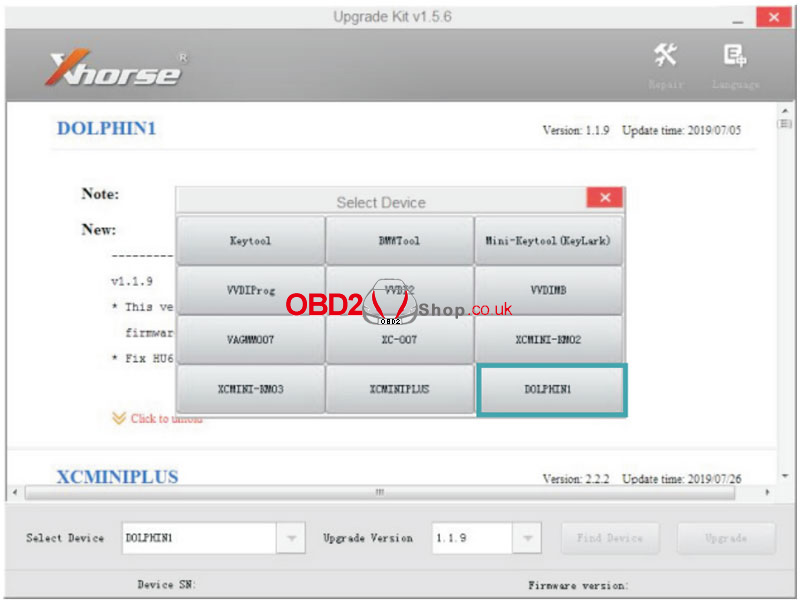
(4) Select Model: Select ‘DOLPHIN1’ and complete the driver installation.
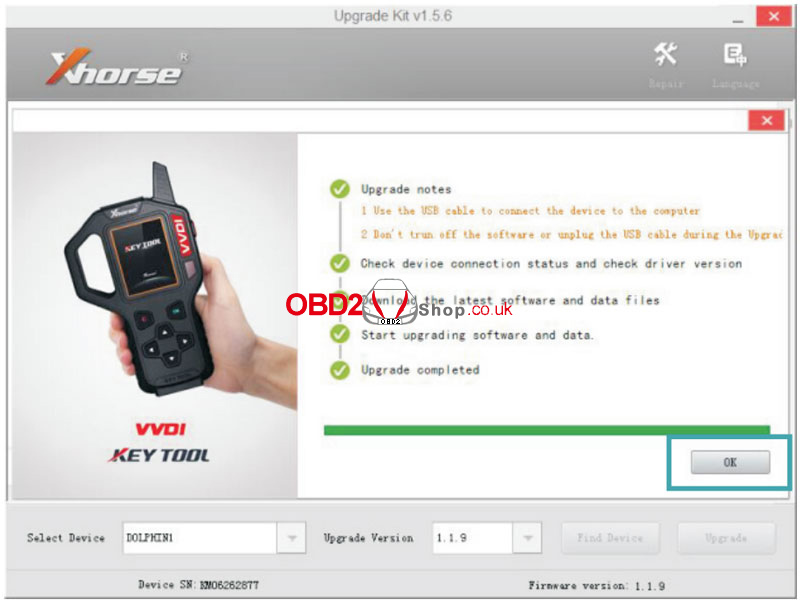
(5) Execute Upgrade: When the machine is found, click ‘Upgrade’.
(6) Finalize: It takes a few minutes to complete; ensure the USB cable remains well connected throughout.