
The CGDI BD006 Car Battery Tester uses conductance testing technology to check vehicle starting batteries and common starting and charging system faults. This guide covers the basic operation of the BD006, including how to connect the tester, set the language, check device information, and update the software.
How to Connect the CGDI BD006
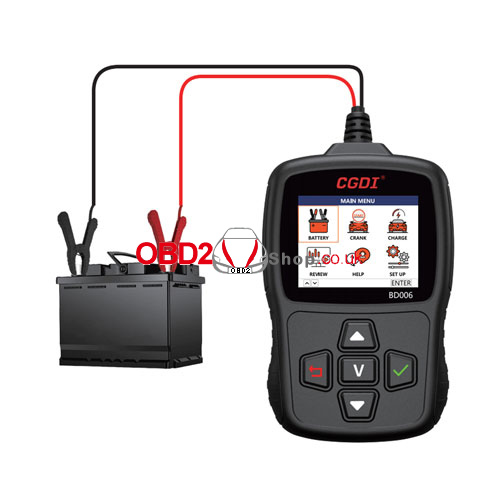
1. Connect the red clip directly to the battery positive (+) terminal and the black clip to the negative (-) terminal. The tester powers on automatically.
2. When testing a battery installed in the vehicle, keep the key in the OFF position. Turn off all electrical equipment and close all doors.
3. Clean the battery positive (+) and negative (-) terminals before testing. Remove any corrosion.
4. Make sure the alligator clips are securely connected directly to the battery terminals. Do not use extension or adapter cables for an indirect connection.
If the alligator clips are not properly fastened, the tester displays a warning message.
Note: If the battery voltage is below 7V, the tester may not function properly.
How to Set Up the CGDI BD006
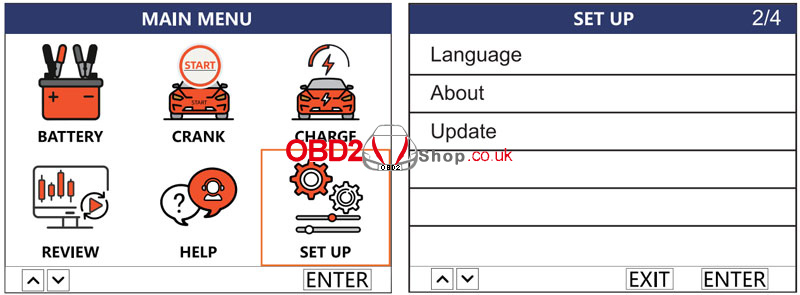
The SET UP menu provides language settings, software updates, and device information.
How to Change the Language
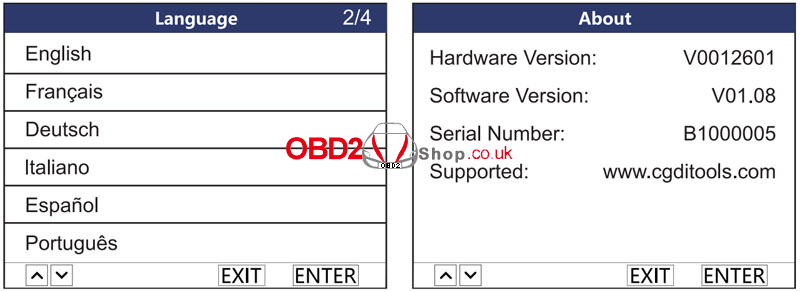
Select [SET UP] → [Language] → select the desired language → press [Enter] to confirm.
The system supports English, Spanish, German, French, Italian, Portuguese, Russian, Japanese, and more. You can customize other languages upon request.
How to Check Device Information
Select About from the SETUP interface and press [Enter].
The device displays the hardware version, software version, and serial number.
How to Update the BD006
The update function is supported only on Windows.
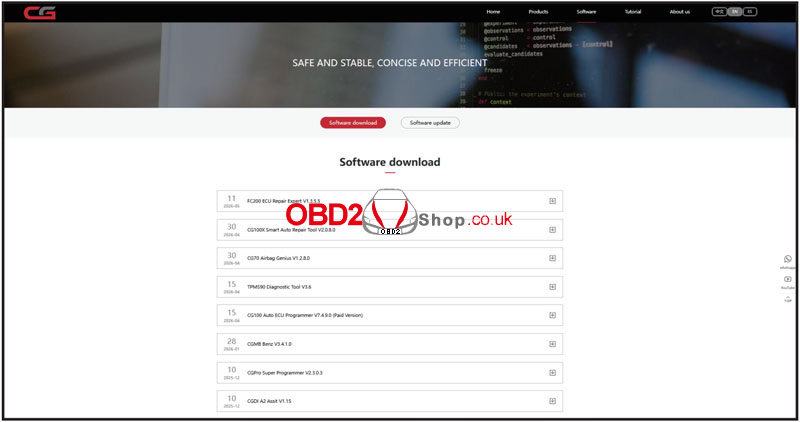
1. Visit https://www.cgditools.com/and click Software download.
2. Download and install the update tool on the computer.
3. Connect CGDI BD006 to the PC with a USB cable and launch the APP.
4. Select Update on the main interface and click Confirm to enter update mode.
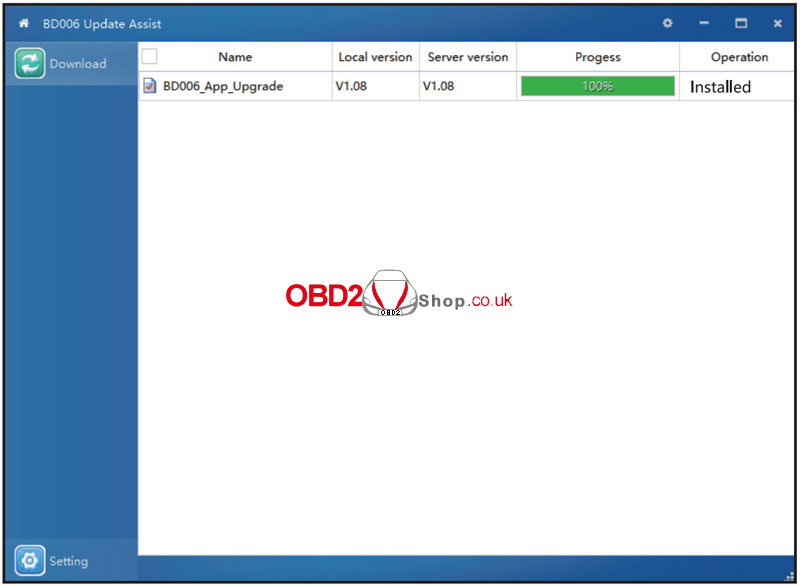
5. Select the corresponding file and click Download. The upgrade is successful when installation is complete.
FAQ
What types of batteries does the CGDI BD006 support?
TheBD006 supports ordinary lead-acid, EFB, AGM flat plate, AGM spiral, and gel starter batteries.
Which battery testing standards does the BD006 support?
The tester supports CCA, JIS, GB, SAE, MCA, CA, DIN, IEC, EN, and BCI.
What tests can the CGDI BD006 perform?
The BD006 provides battery testing, cranking testing, charging testing, and data review.
What should I do if the battery voltage is below 7V?
The tester may not function properly when the battery voltage is below 7V.
What should I do if the tester displays a warning after connecting the clips?
Check that the alligator clips are properly fastened and connected directly to the battery’s positive (+) and negative (-) terminals. Do not use extension or adapter cables for an indirect connection.
Can I update the CGDI BD006 on a Mac?
No. The update function is supported only on Windows.
Where can I find the BD006 serial number?
Select SETUP → About and press [Enter] to view the serial number, along with the hardware and software versions.
