


When all keys are lost on a Mercedes-Benz W210, the CGDI A2 can be used to program a replacement key. Here’s how to do it with the BBA adapter and AC adapter.
Required Tools
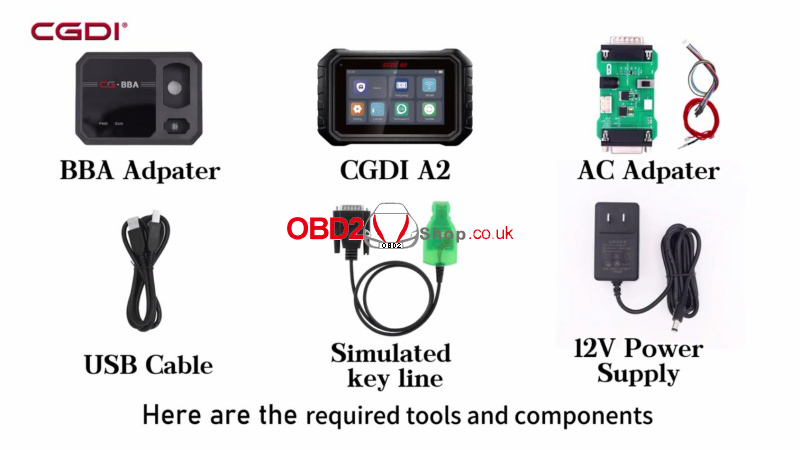
CGDI A2 Key Programmer
BBA adapter
AC adapter
USB cable
Simulated key harness
12V power supply
1. Connect the EIS to the AC Adapter
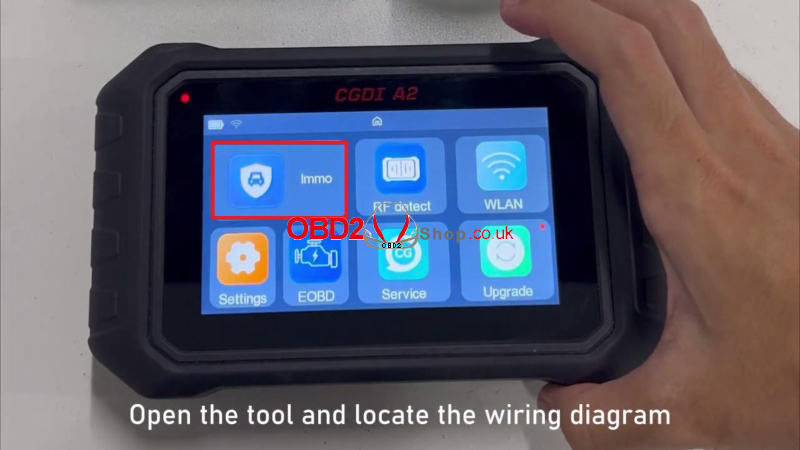
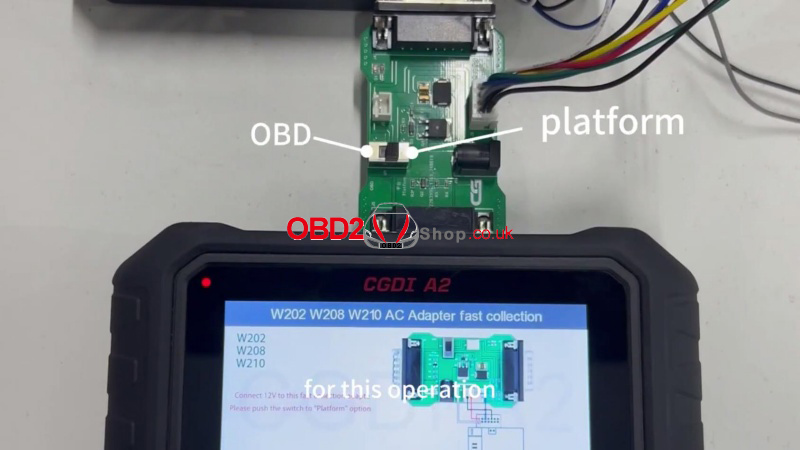
(1) Open the tool and locate the wiring diagram for the target key lock.
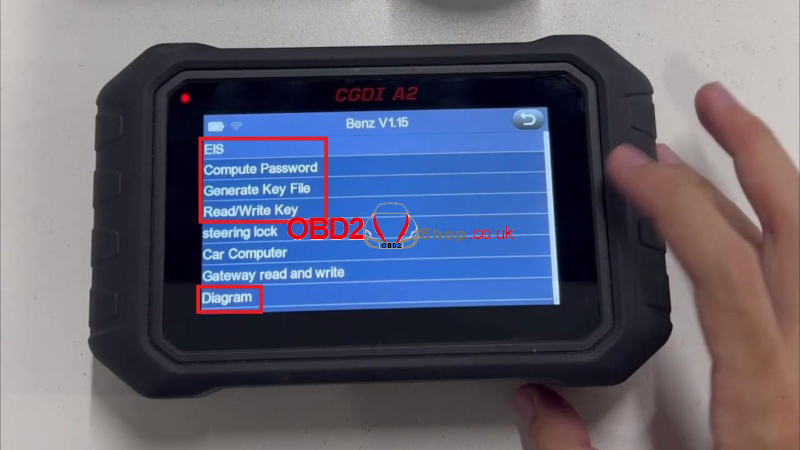
(2) Follow this menu path to find the correct diagram:
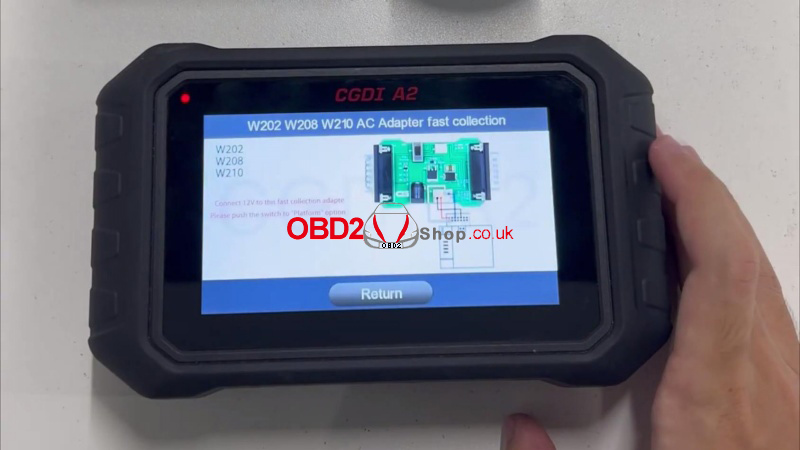
Immo >> Agree >> Europe >> Benz >> Diagram >> EIS >> W202 W208 W210 >> W202 W208 W210 AC Adapter fast collection
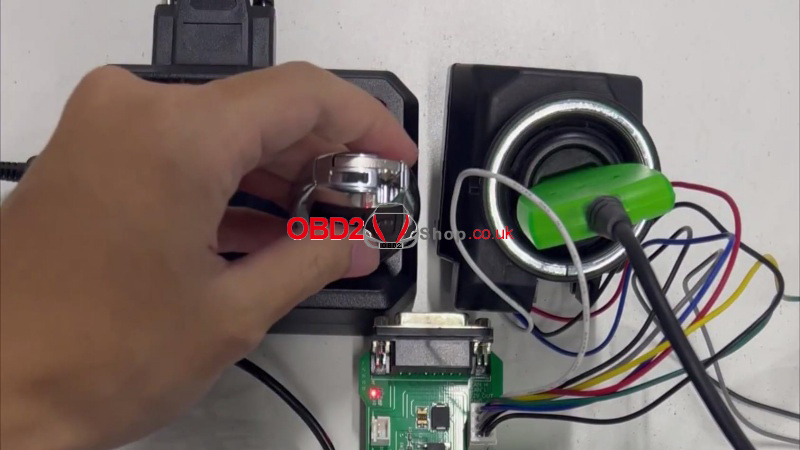
(3) Connect the FBS3 EIS to the AC adapter according to the wiring diagram. Set the write switch to Platform Mode.
(4) Connect the BBA adapter to the CGDI A2 via USB. Then connect the simulated key harness to the BBA adapter and supply 12V power.
2. Read the EIS Data
(1) Go to EIS >> Read EIS Data >> IR.
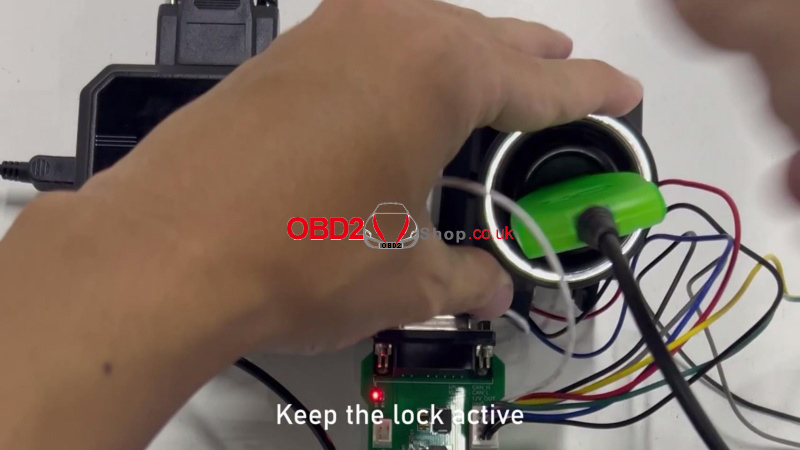
(2) When prompted to connect the BBA adapter, insert the simulated key into the EIS within 30 seconds.
(3) Keep the EIS active to prevent it from entering sleep mode. Click Confirm to read the data.
(4) Once reading is complete, click Yes to save the EIS data.
3. Calculate the Key Password
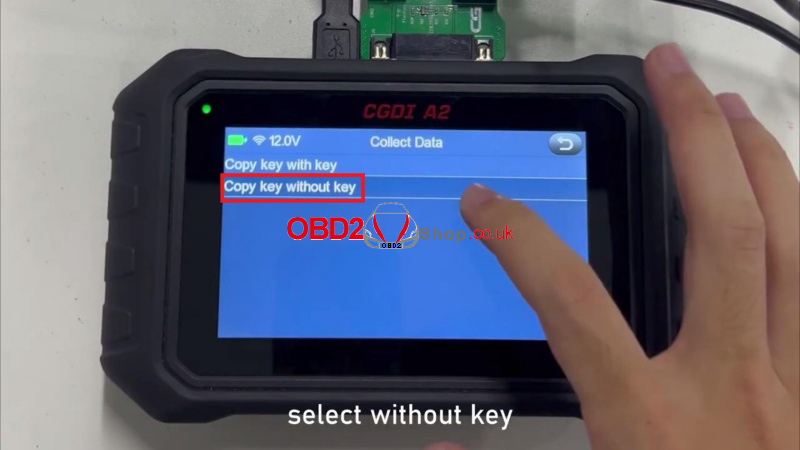
(1) Go to Compute Password >> Collect Data >> Copy key without key >> W202, W203, W208, W210, W463, W639(K)(FAST).
(2) If the simulated key is still inserted in the EIS, remove it before clicking OK.
(3) Select Fast mode (AC adapter). When prompted, insert the simulated key into the EIS within one minute. If it is already inserted, remove it and insert it again.
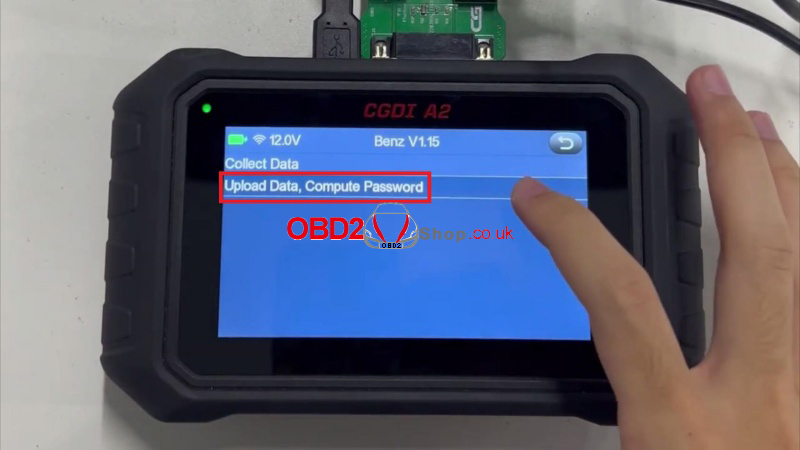
(4) Once the data is collected and saved, click Upload data, compute password >> Select file, then select the saved file and confirm.
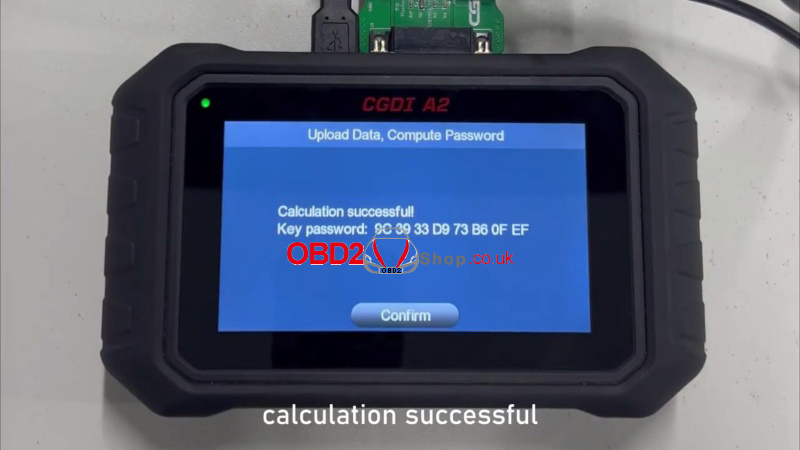
The password calculation will start. Once successful, the tool will display the key password.
(Example: 9C 39 33 D9 73 B6 0F EF)
(5) After calculation, the tool prompts you to load the password into the EIS file. This password-loaded file is required to generate the EE file. Click OK, select Automatic Loading >> OBD, and save the file.
4. Generate the Key File & Write the New Key
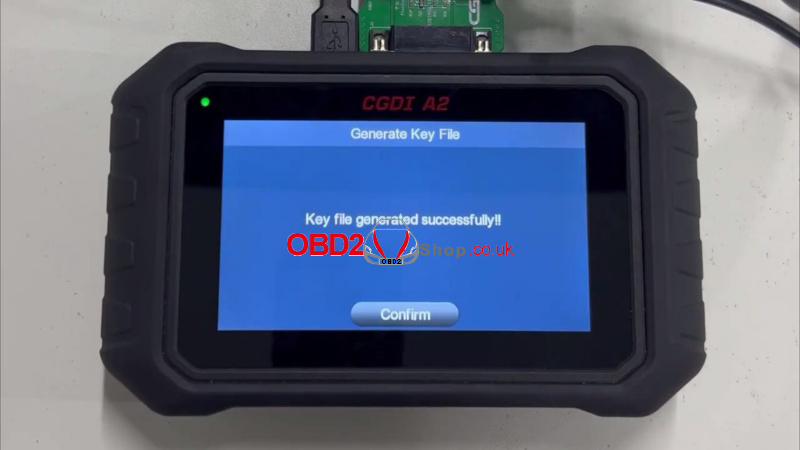
(1) Select Generate Key File, open the saved file from the previous step, and confirm the file name.
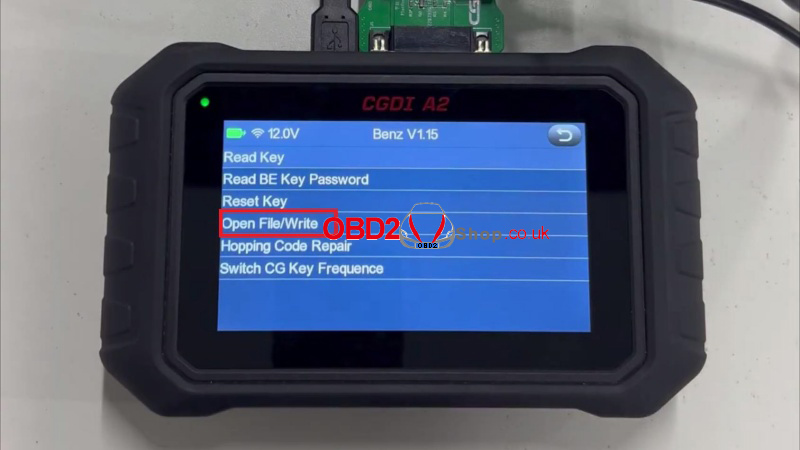
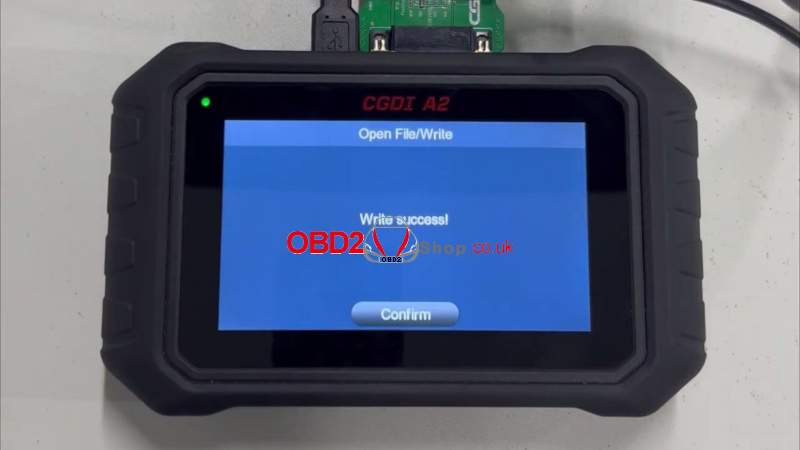
(2) Once the key file is generated successfully, go to Read/Write Key >> IR >> Open File/Write.
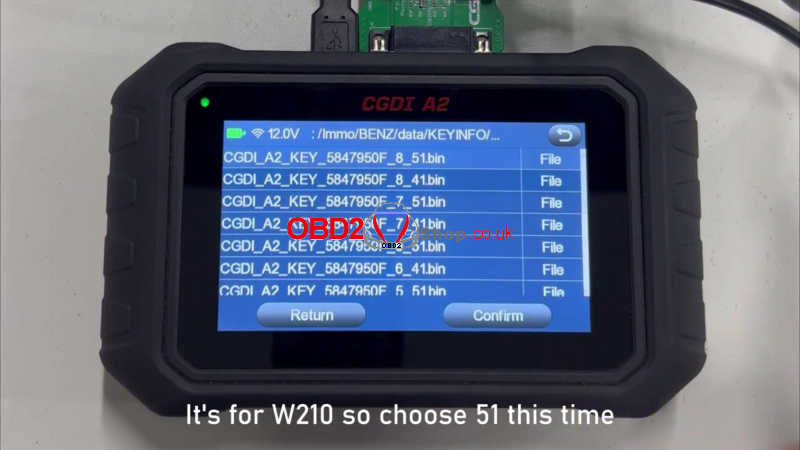
(3) Select the key format:
41 format: Smart key
51 format: Common key and BE key
For the Mercedes W210, select the 51 format.
(4) Connect the BBA adapter and insert the new key into it.
(5) Start writing. Do not remove the key while the tool is writing the key EEPROM.
Write Success!
The new key has been written successfully.
Final Check
Insert the new key into the vehicle and check that the engine starts and the basic key functions work normally.
