

If you’ve just received your Launch X-431 PROG5 ECU Programmer, you’ll need to complete the registration and activation process before using its ECU cloning and chip read/write functions.
This guide walks you through the registration procedure step by step.
Step 1. Visit the Official Launch Website
Open the official Launch website:
www.en.cnlaunch.com
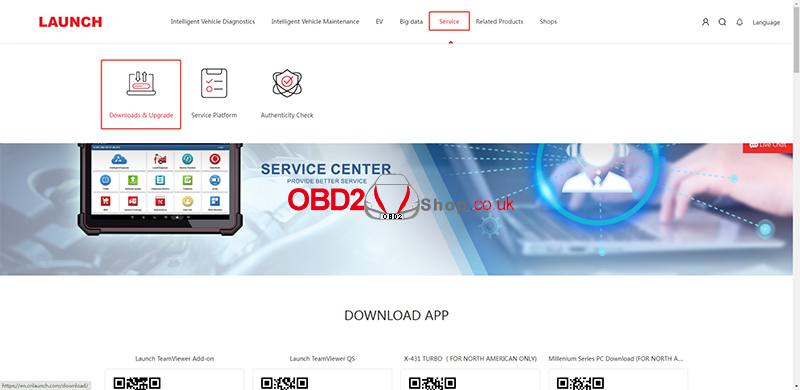
Then navigate to:
Service → Downloads & Upgrade
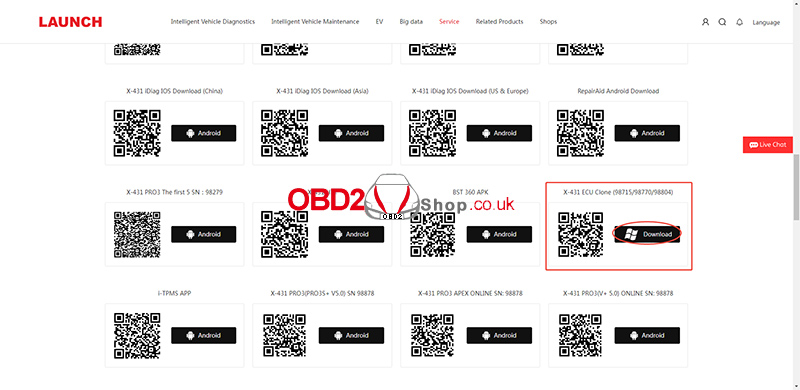
Locate X-431 ECU Clone (98715/98770/98804) and click Download.
Step 2. Download the Required Language Version
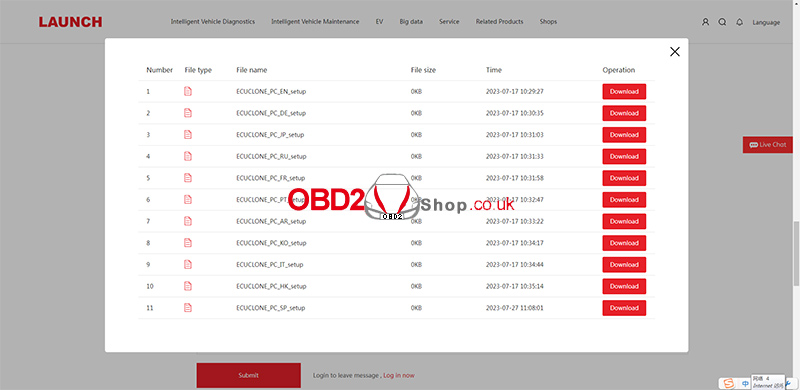
Select the language version you need and download the installation package.
Step 3. Install the Software and Connect the PROG5
After installing the software on your computer:
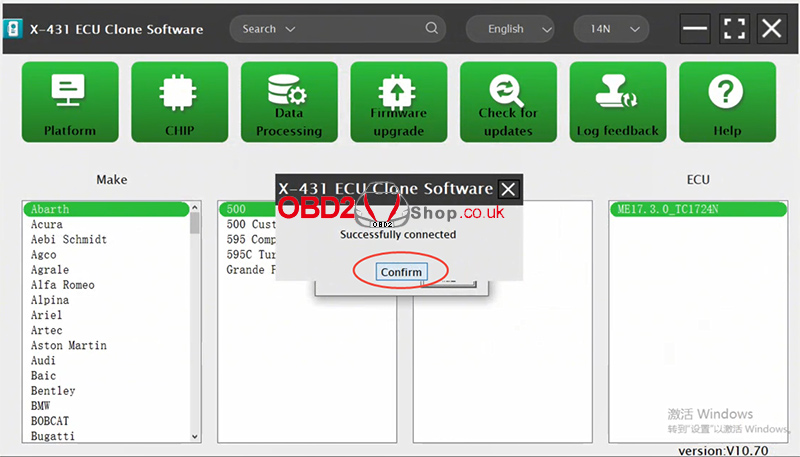
Connect the Launch X-431 PROG5 programmer.
Launch the software.
Click Confirm to continue.
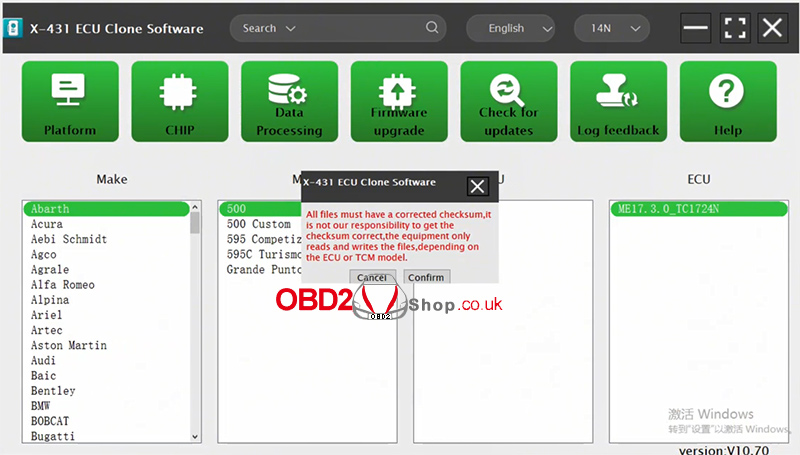
Step 4. Verify Your Email Address
Enter an email address that can receive verification emails.
Click Send to receive the verification code.
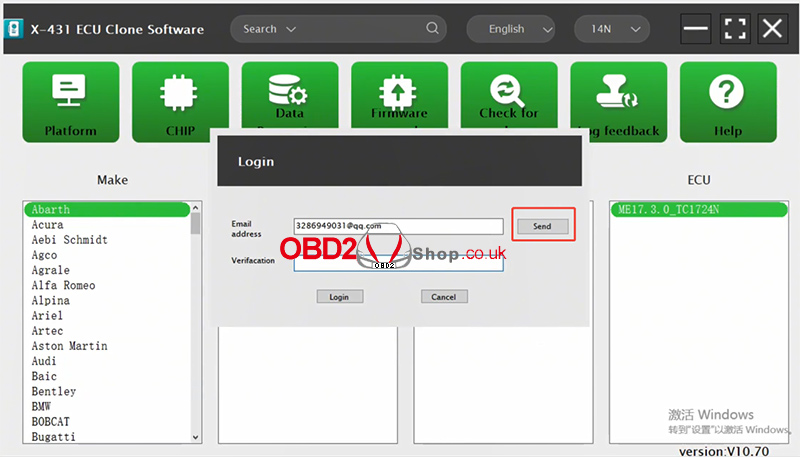
Step 5. Log In
Check your email for the verification code.
Enter the code in the software, then click Login.
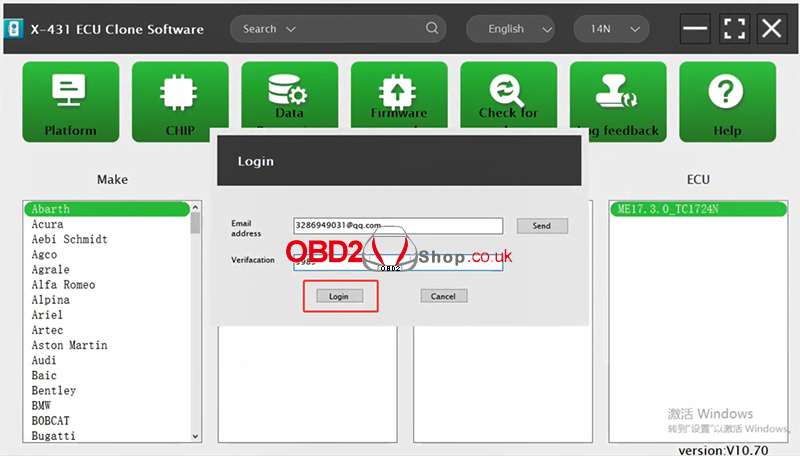
Step 6. Activate the Device
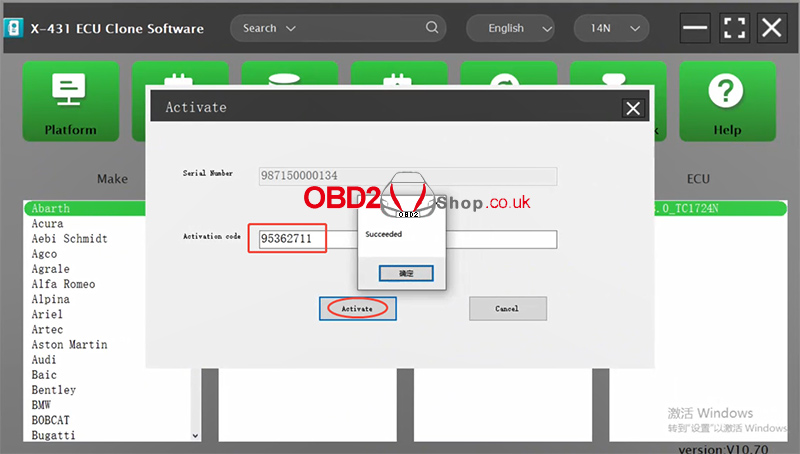
Click Activate to begin the activation process.
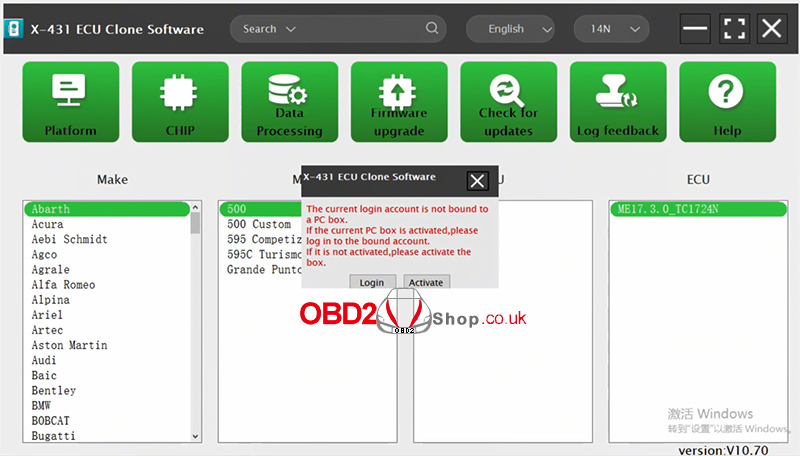
Step 7. Enter the Activation Code
Find the activation code included on the accessory list inside the product package.
Enter the activation code into the software and click Activate to complete the device registration.
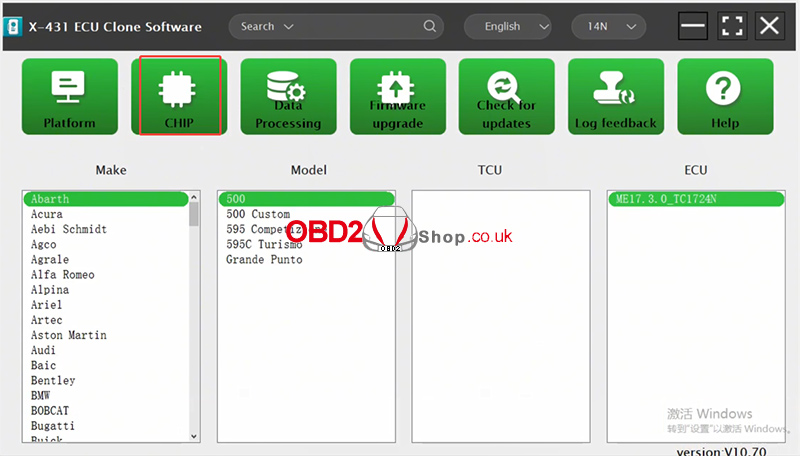
Step 8. Add the Read/Write Chip Function
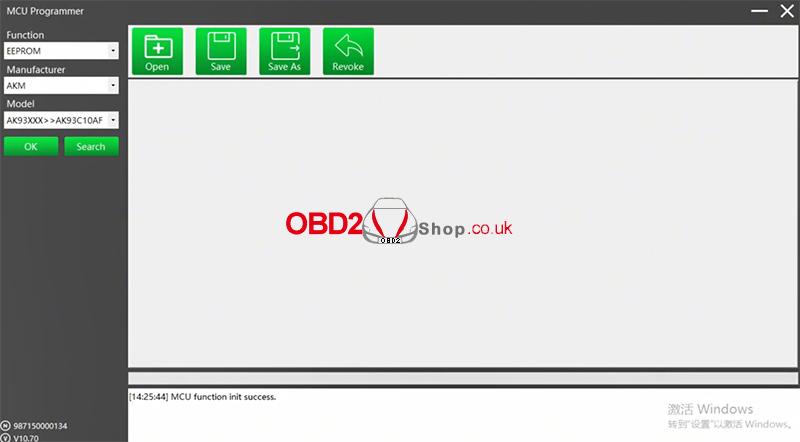
Once the device has been successfully activated, proceed to add the Read/Write Chip function by following the on-screen instructions.
Conclusion
Registering and activating the Launch X-431 PROG5 is quick and straightforward. Simply download the official ECU Clone software, verify your email, enter the activation code included with your device, and complete the activation process. After activation, you’ll be able to access the Read/Write Chip function and begin using your PROG5 for ECU programming and cloning tasks.
If you encounter any issues during registration or activation, feel free to contact us for technical support.
