

The TOPDON ArtiDiag800 BT 2 is a professional wireless OBD2 diagnostic scanner that offers full-system diagnostics, bi-directional control, and advanced maintenance functions. If you’re using the scanner for the first time or experiencing connection or communication issues, this FAQ guide covers the most common questions and solutions.
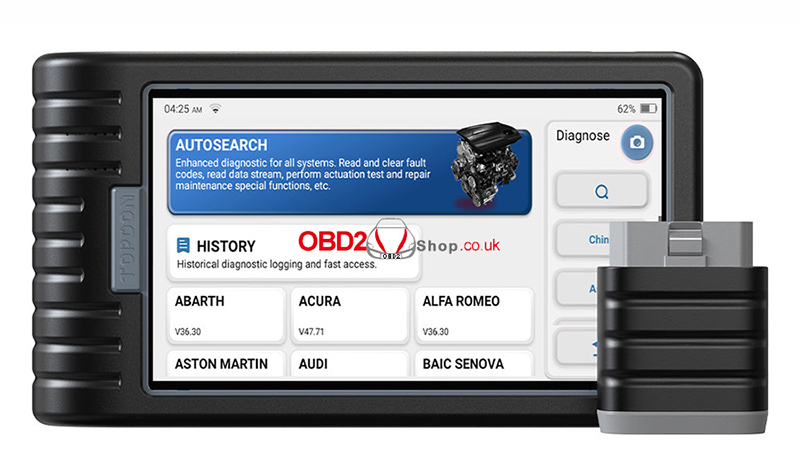
Q1: Why Doesn’t the ArtiDiag800 BT 2 Respond After Connecting to a Vehicle?
If your scanner does not respond after connecting to the vehicle, please check the following:
Make sure the MDCI Mini is securely connected to the vehicle’s OBD-II diagnostic port.
Confirm that the vehicle ignition is turned ON.
Verify that the vehicle is supported by the ArtiDiag800 BT 2.
Ensure both the scanner software and the MDCI Mini firmware are updated to the latest versions.
Check the indicator status on the MDCI Mini. Refer to the user manual for the meaning of each indicator light.
These checks resolve most connection problems.
Q2: Why Does the System Stop When Reading the Data Stream?
This issue is usually caused by an unstable connection between the scanner and the MDCI Mini.
To fix it:
Unplug the MDCI Mini.
Reconnect it firmly to the vehicle’s diagnostic port.
Restart the data stream function.
A stable connection is essential for continuous live data reading.
Q3: What Should I Do If There Is a Communication Error with the Vehicle ECU?
If communication with the ECU fails, try the following:
Verify that the MDCI Mini is correctly connected.
Update both the scanner software and the MDCI Mini firmware to the latest versions.
Check the MDCI Mini indicator lights according to the user manual.
If the problem still exists, use the Feedback feature on the scanner and send the following information to technical support:
Vehicle Year
Make
Model
VIN Number
This information helps technicians diagnose compatibility or communication issues more efficiently.
Q4: Why Does the Screen Flash When the Engine Starts?
A flashing screen during engine startup is normal.
It is caused by electromagnetic interference generated when the engine is ignited and does not affect the diagnostic performance of the scanner.
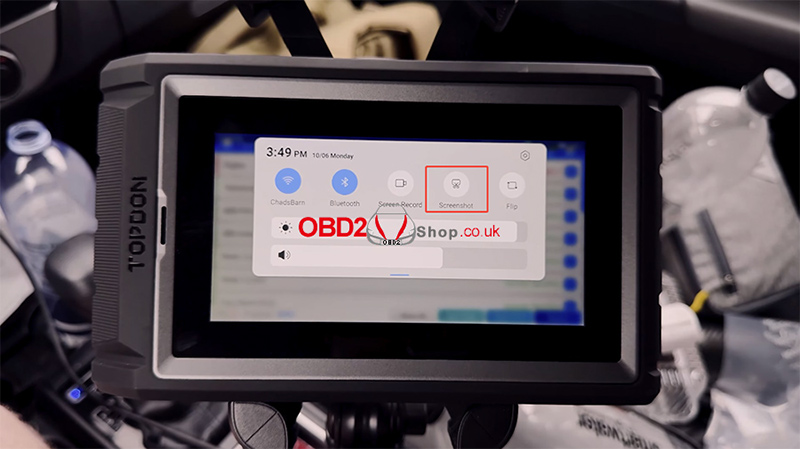
Q5: How Do I Take a Screenshot?
Capturing diagnostic results is quick and easy.
Simply tap the Screenshot icon on the screen.
The captured image will automatically be saved in the ArtiFolder module, where you can view or manage your screenshots later.
Q6: How Do I Update the System Software?
Keeping your ArtiDiag800 BT 2 updated ensures access to the latest features, vehicle coverage, and performance improvements.
Follow these steps:
Turn on the scanner and connect it to a stable Wi-Fi network.
Go to Settings → App Update.
Tap OTA, then select Check Version.
Follow the on-screen instructions to complete the update.
The process may take several minutes depending on your internet speed. After the update finishes, the scanner will automatically restart.
Q7: Does the MDCI Mini Need a Firmware Update?
Yes. TOPDON recommends keeping the MDCI Mini firmware updated.
To update it:
Connect the scanner to the internet.
Plug the MDCI Mini into a supported vehicle.
Go to Settings → Firmware Fix.
Complete the firmware update.
After the update finishes, unplug and reconnect the MDCI Mini to complete the process.
Updating the firmware improves compatibility, stability, and overall performance.
Conclusion
The TOPDON ArtiDiag800 BT 2 is designed to provide fast, accurate, and wireless vehicle diagnostics. Most connection, communication, and performance issues can be resolved by checking the MDCI Mini connection and keeping both the scanner software and firmware up to date.
If you continue to experience problems, use the built-in Feedback feature to send your vehicle information to TOPDON technical support for further assistance.
