
Keeping your Topdon ArtiDiag600 S up to date ensures you have the latest diagnostic functions, improved performance, and support for more vehicle models. This guide explains how to update both the firmware and diagnostic software.
Firmware Update
The ArtiDiag600 S firmware is designed to update automatically when a new version is available.
If you want to check for updates manually:
1. Turn on the device.
2. Go to User Info.
3. Tap Firmware Update.
4. Follow the on-screen instructions to complete the update.
Software Update
The Software Update function allows you to download or update the latest vehicle diagnostic software.
Steps to Update the Diagnostic Software
Step 1. From the Home screen, tap Update to enter the update page.
Step 2. Tap Download next to the available software to install the latest version.
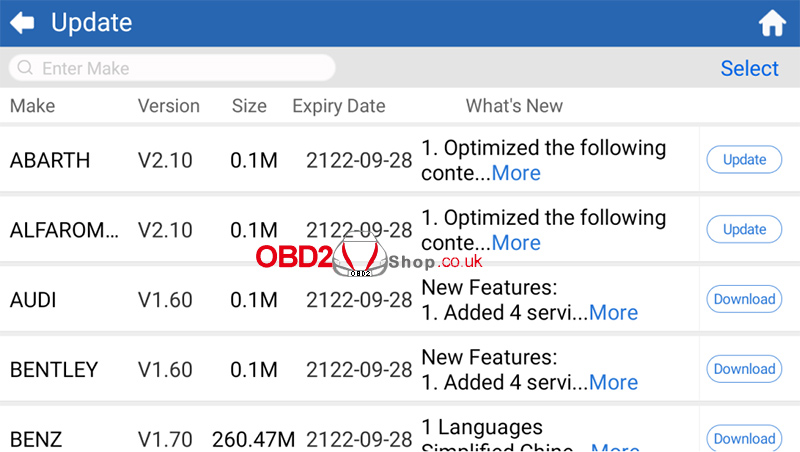
Note: You can also tap Select in the upper-right corner to choose multiple software packages and update them all at once.
Conclusion
Regularly updating your Topdon ArtiDiag600 S ensures you always have the latest firmware and diagnostic software. It helps improve compatibility, adds new vehicle coverage, and keeps your scanner performing at its best. Checking for updates periodically is recommended for the best diagnostic experience.
