
OBDSTAR ECU MASTER supports reading and writing data for the MB Benz Bosch MP4 (TCM) equipped with MPC5566 and 95640. This guide explains the bench connection process, internal flash and external EEPROM data operations, and VIN writing.
1. Required Tools
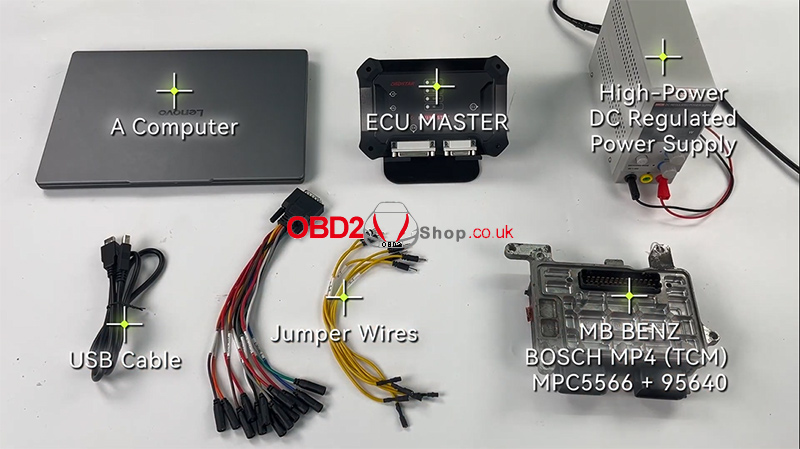
Prepare the following tools before starting:
Computer
OBDSTAR ECU MASTER
High-power DC regulated power supply
USB cable
Jumper wires
MB Benz Bosch MP4 (TCM) MPC5566 + 95640
2. Select the ECU Model
Open ECU Flasher.
Select HD > TCM.
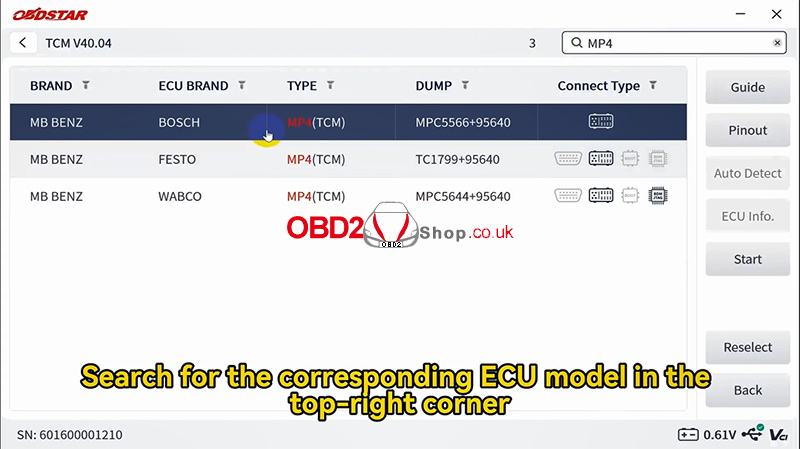
Use the search box in the top-right corner to find the corresponding ECU model.
Select MB BENZ MP4 MPC5566+95640.
3. Enter Bench Mode and Check the Wiring Diagram
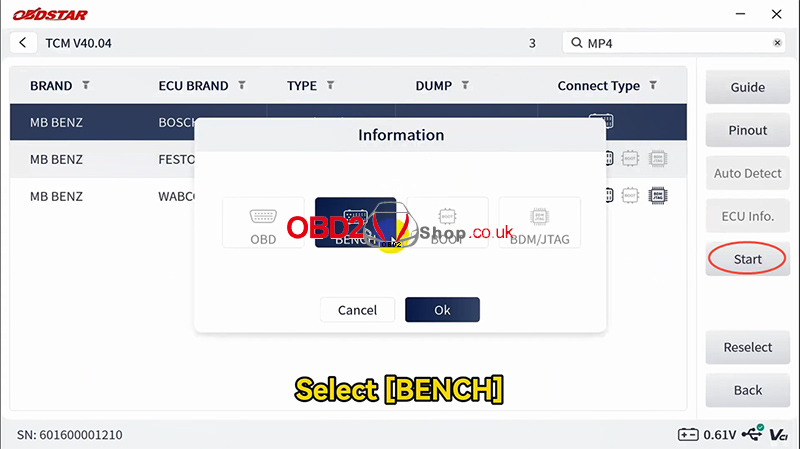
Tap Start > BENCH > OK.
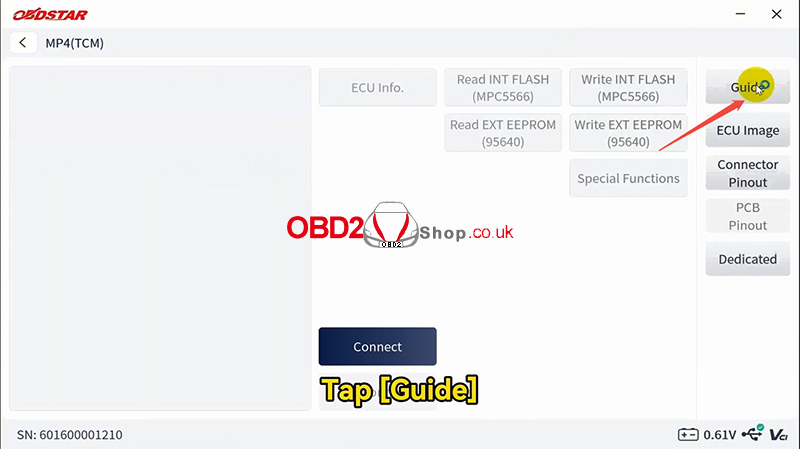
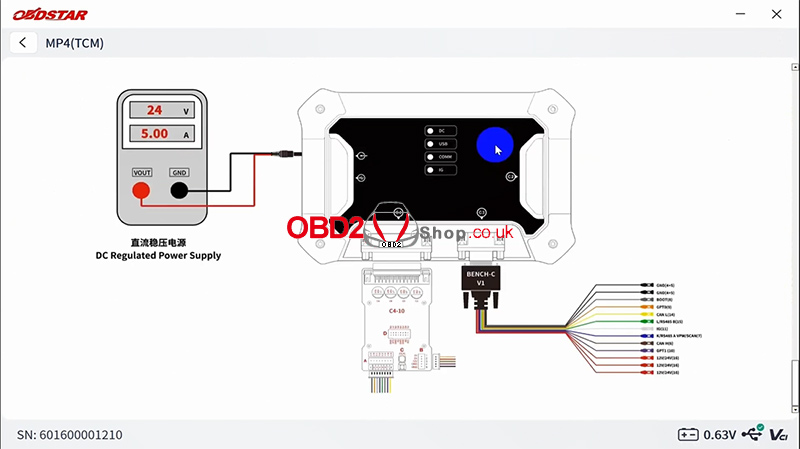
Tap Guide to view helpful instructions and connection diagrams for different adapters.
Open ECU Image, then click Connector Pinout to check the connector pinout details.
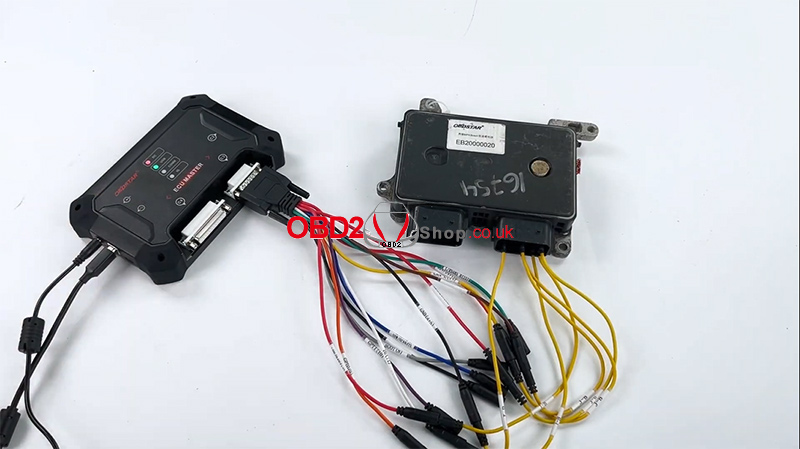
Connect the ECU to the device according to the wiring diagram.
4. Connect to the ECU
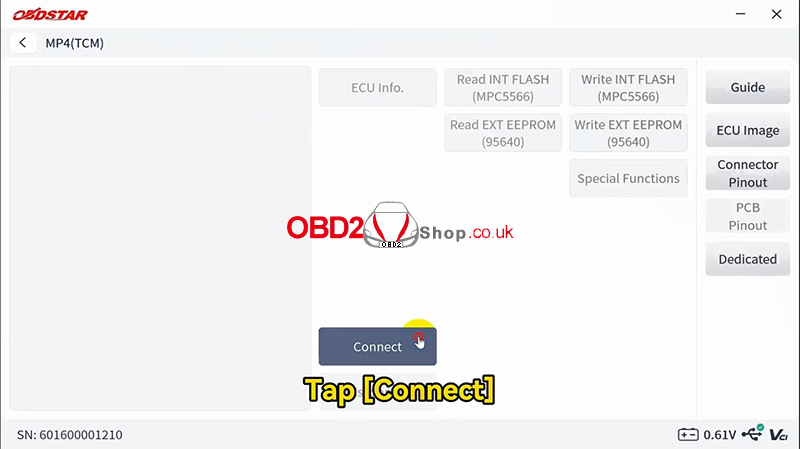
After completing the wiring, tap Connect.
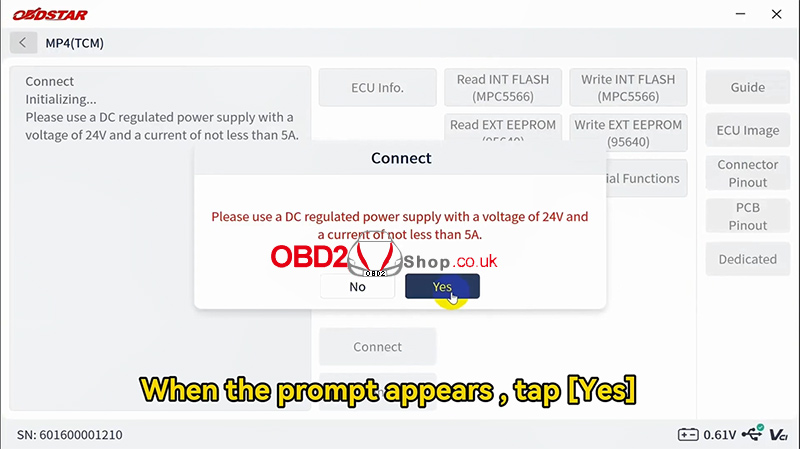
When the confirmation prompt appears, tap Yes.
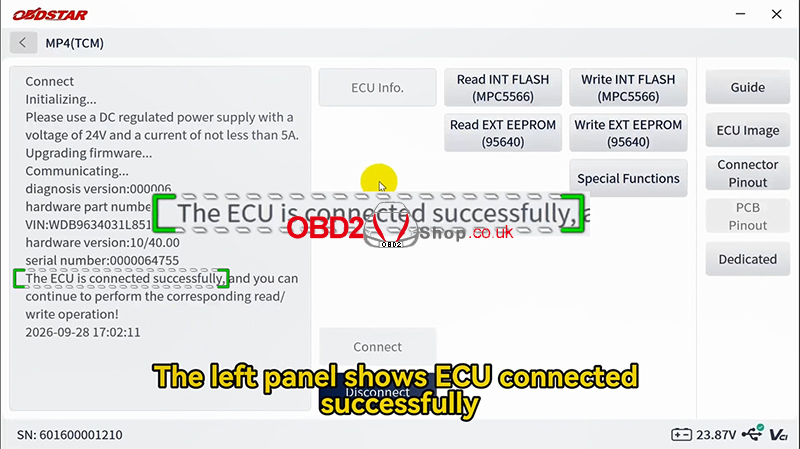
Check the left panel to confirm that the ECU has connected successfully.
5. Read and Write Internal Flash and External EEPROM Data
Read Internal Flash
Tap Read INT FLASH (MPC5566).
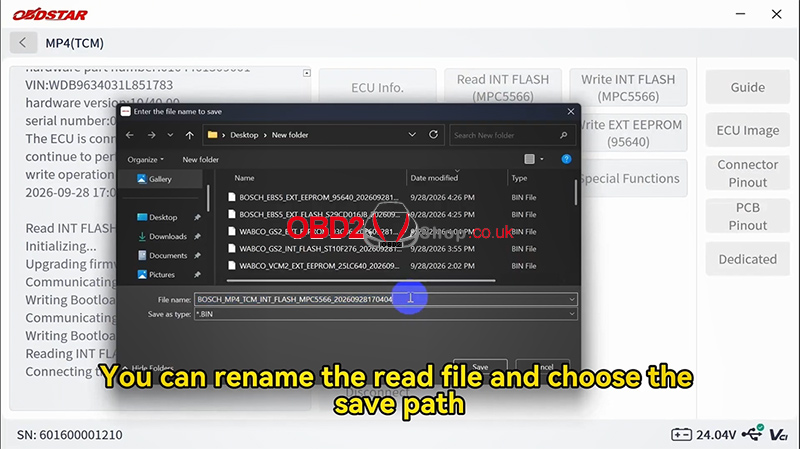
Rename the file if needed and select the save path.
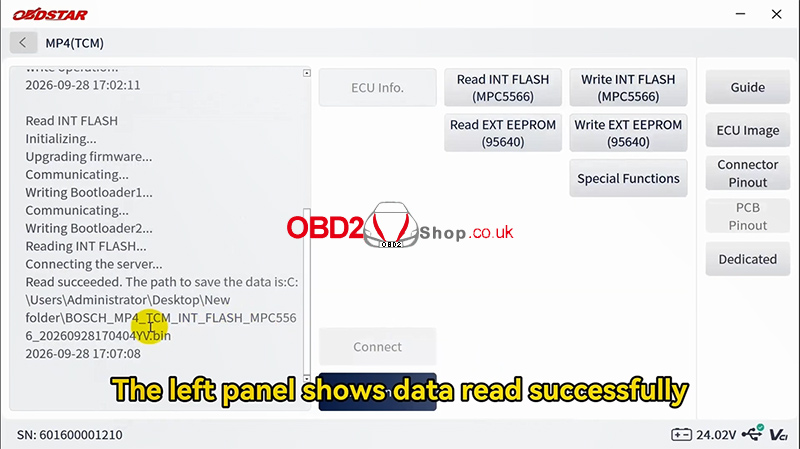
Wait for the operation to finish and confirm that the left panel displays a successful read message.
Read External EEPROM
Tap Read EXT EEPROM (95640).
Rename the file if needed and select the save path.
Wait for the device to confirm that the data has been read successfully.
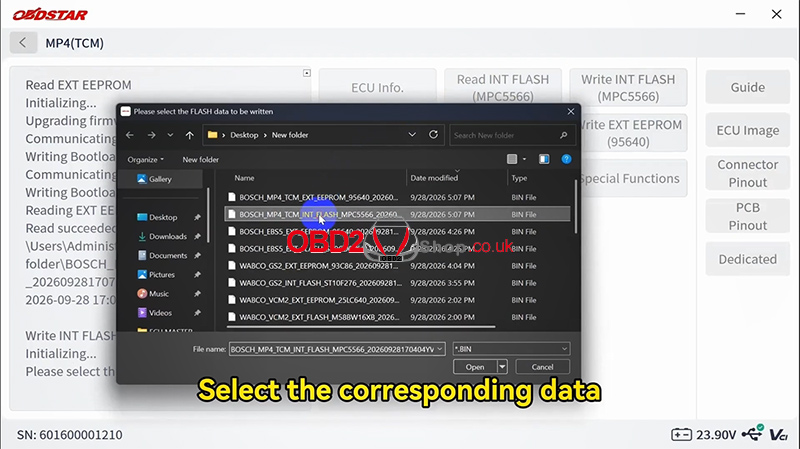
Write Internal Flash
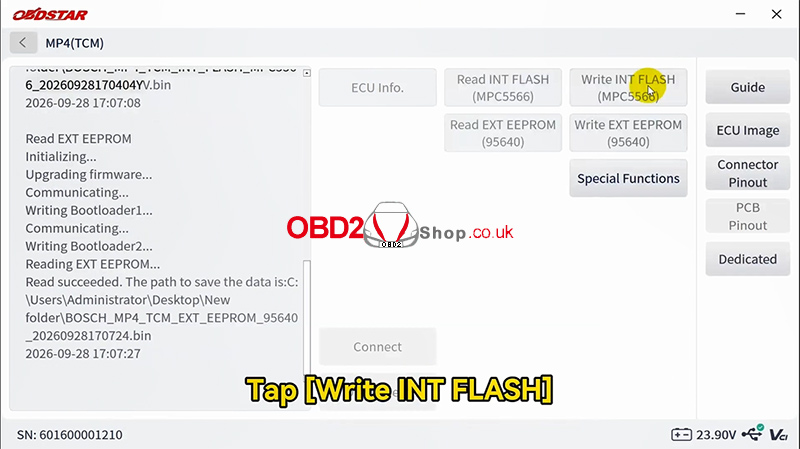
Tap Write INT FLASH (MPC5566).
Select the corresponding data file.
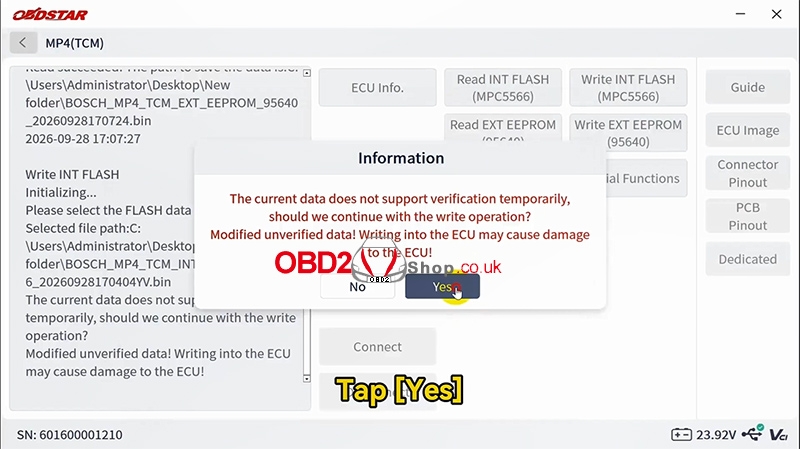
Tap Yes to confirm.
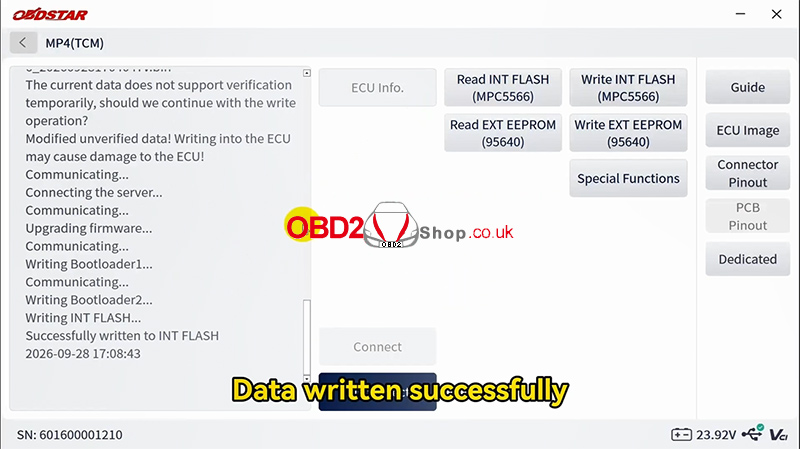
Wait for the successful write message.
Write External EEPROM
Tap Write EXT EEPROM (95640).
Select the corresponding data file.
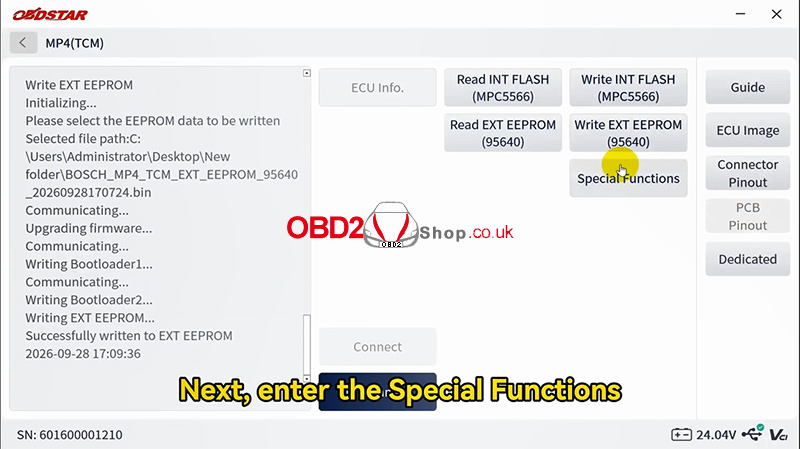
Tap Write and wait for the operation to complete successfully.
Note: Save backup copies of the original internal flash and external EEPROM data before writing. Ensure that the selected files match the ECU and that the power supply and wiring remain stable throughout the process.
6. Write a New VIN
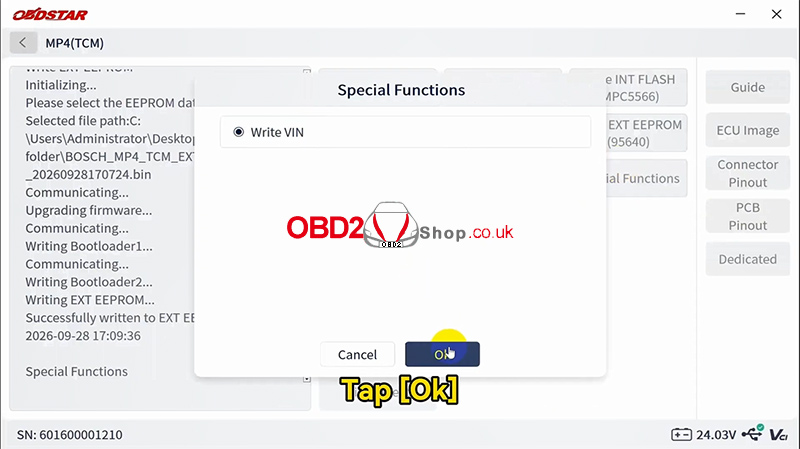
Enter Special Functions and tap OK.
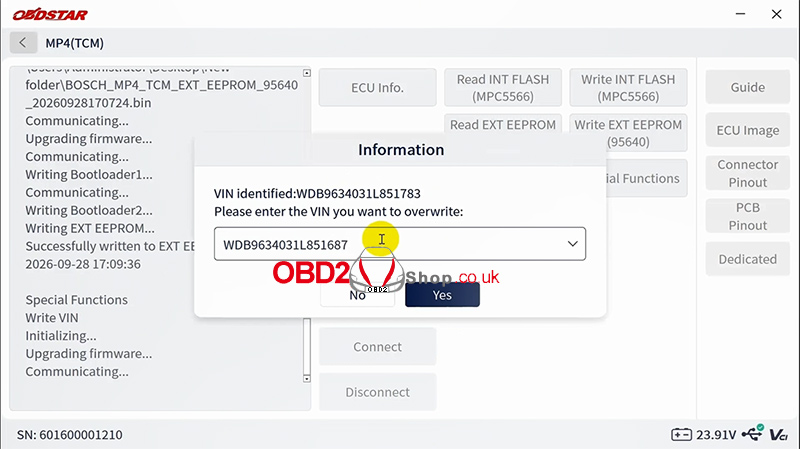
Enter the new VIN.
Tap OK to confirm.
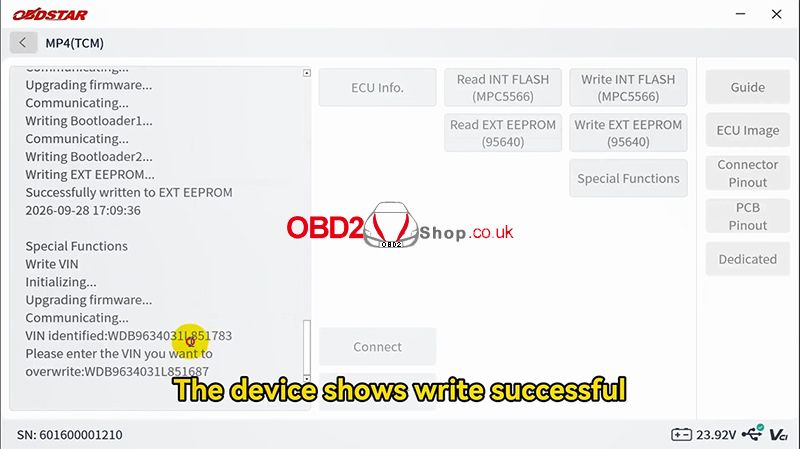
Check the device screen for the message “Write successful”.
Video Guide
For a visual demonstration of the complete procedure, watch the following video:
Visit www.obd2shop.co.uk for more automotive diagnostic and ECU programming solutions.
